Raspberry Pi Pico Rubberducky
2 min read
You can turn your Raspberry Pi Pico into a Rubberducky USB.
Quick Start Guide
Install and have your USB Rubber Ducky working in less than 5 minutes.
2. Plug the device into a USB port while holding the boot button. It will show up as a removable media device named RPI-RP2.
3. Install CircuitPython on the Pico or Pico W If using a Pico board: Copy the adafruit-circuitpython-raspberry_pi_pico-en_US-8.0.0.uf2 file to the root of the Pico (RPI-RP2). The device will reboot and after a second or so, it will reconnect as CIRCUITPY.
If using a Pico W board: Copy the adafruit-circuitpython-raspberry_pi_pico_w-en_US-8.0.0.uf2 file to the root of the Pico (RPI-RP2). The device will reboot and after a second or so, it will reconnect as CIRCUITPY.
1. Copy the lib folder to the root of the CIRCUITPY
5. Copy *.py to the root of the CIRCUITPY
6. Follow the instructions in README.md to enter setup mode
7. Copy your payload as payload.dd to the root of the CIRCUITPY
8. Unplug the device from the USB port and remove the setup jumper.
Enjoy your Pico-Ducky.
Setup Mode
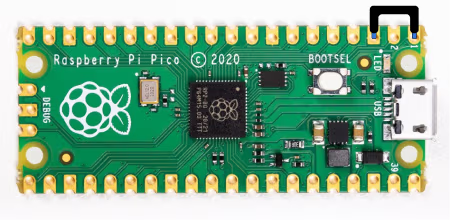
To edit the payload, enter setup mode by connecting the pin 1 (GP0) to pin 3 (GND), this will stop the pico-ducky from injecting the payload in your own machine. The easiest way to do so is by using a jumper wire between those pins as seen bellow.
USB enable/disable mode
If you need the pico-ducky to not show up as a USB mass storage device for stealth, follow these instructions.
• Enter setup mode.
• Copy your payload script to the pico-ducky.
• Disconnect the pico from your host PC.
• Connect a jumper wire between pin 18 (GND) and pin 20 (GPIO15). This will prevent the pico-ducky from showing up as a USB drive when plugged into the target computer.
• Remove the jumper and reconnect to your PC to reprogram.
Pico: The default mode is USB mass storage enabled.
Pico W: The default mode is USB mass storage disabled
Pico W Web Service
The Pico W AP defaults to ip address 192.168.4.1. You should be able to find the webservice at http://192.168.4.1:80
The following endpoints are available on the webservice:
• /
• /new
• /ducky
• /edit/<filename>
• /write/<filename>
• /run/<filename>
API endpoints
• /api/run/<filenumber>