Yazi
5 min read
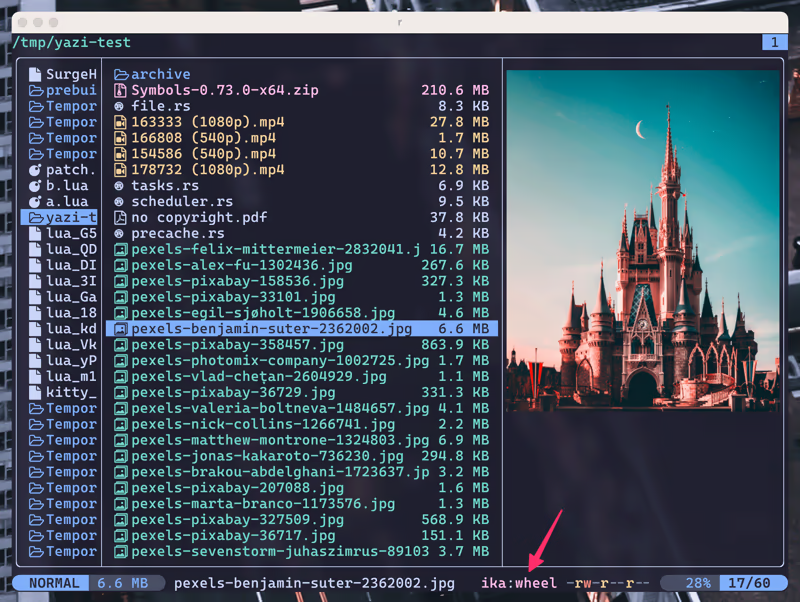
Yazi (means "duck") is a terminal file manager written in Rust, based on non-blocking async I/O. It aims to provide an efficient, user-friendly, and customizable file management experience.
Features
• 🚀 Full Asynchronous Support: All I/O operations are asynchronous, CPU tasks are spread across multiple threads, making the most of available resources.
• 💪 Powerful Async Task Scheduling and Management: Provides real-time progress updates, task cancellation, and internal task priority assignment.
• 🖼️ Built-in Support for Multiple Image Protocols: Also integrated with Überzug++, covering almost all terminals.
• 🌟 Built-in Code Highlighting and Image Decoding: Combined with the pre-loading mechanism, greatly accelerates image and normal file loading.
• 🔌 Concurrent Plugin System: UI plugins (rewriting most of the UI), functional plugins, custom previewer, and custom preloader; Just some pieces of Lua.
• 💫 Vim-like input/select/notify component, auto-completion for cd paths
• 🏷️ Multi-Tab Support, Cross-directory selection, Scrollable Preview (for videos, PDFs, archives, directories, code, etc.)
• 🔄 Bulk Renaming, Visual Mode, File Chooser
• 🎨 Theme System, Custom Layouts, Trash Bin, CSI u
• ... and more!
Dependencies
To use Yazi, you must have the following prerequisites installed:
Yazi can be optionally extended with other command line tools to enable additional features.
• nerd-fonts (recommended)
• ffmpegthumbnailer (for video thumbnails)
• unar (for archive preview)
• fzf (for quick file subtree navigation)
• zoxide (for historical directories navigation)
Shell Wrapper
We suggest using this ya shell wrapper that provides the ability to change the current working directory when exiting Yazi.
shell
function ya() {
local tmp="$(mktemp -t "yazi-cwd.XXXXX")"
yazi "$@" --cwd-file="$tmp"
if cwd="$(cat -- "$tmp")" && [ -n "$cwd" ] && [ "$cwd" != "$PWD" ]; then
cd -- "$cwd"
fi
rm -f -- "$tmp"
}
Keybindings
To navigate between files and directories you can use the arrow keys ←, ↑, ↓ and → or Vim-like commands such as h, j, k, l:
| Key binding | Alternate key | Action |
|---|---|---|
k | ↑ | Move the cursor up |
j | ↓ | Move the cursor down |
l | → | Enter hovered directory |
h | ← | Leave the current directory and into its parent |
Further navigation commands can be found in the table below.
| Key binding | Action |
|---|---|
K | Move the cursor up 5 lines |
J | Move the cursor down 5 lines |
g ⇒ g | Move cursor to the top |
G | Move cursor to the bottom |
Selection
To select files and directories, the following commands are available.
| Key binding | Action |
|---|---|
<Space> | Toggle selection of hovered file/directory |
v | Enter visual mode (selection mode) |
V | Enter visual mode (unset mode) |
<Ctrl-a> | Select all files |
<Ctrl-r> | Inverse selection of all files |
<Esc> | Cancel selection |
File/directory operations
To interact with selected files/directories use any of the commands below.
| Key binding | Action |
|---|---|
o | Open the selected files |
O | Open the selected files interactively |
<Enter> | Open the selected files |
<Ctrl-Enter> | Open the selected files interactively (some terminals don't support it yet) |
y | Yank the selected files (copy) |
x | Yank the selected files (cut) |
p | Paste the yanked files |
P | Paste the yanked files (overwrite if the destination exists) |
- | Create a symbolic link to the yanked files (absolute path) |
_ | Create a symbolic link to the yanked files (relative path) |
d | Move the files to the trash |
D | Permanently delete the files |
a | Create a file or directory (ends with "/" for directories) |
r | Rename a file or directory |
; | Run a shell command |
: | Run a shell command (block the UI until the command finishes) |
. | Toggle the visibility of hidden files |
<Ctrl-s> | Cancel the ongoing search |
z | Jump to a directory using zoxide |
Z | Jump to a directory, or reveal a file using fzf |
w | Show task manager |
Copying paths
To copy paths, use any of the following commands below.
Observation: c ⇒ d indicates pressing the c key followed by pressing the d key.
| Key binding | Action |
|---|---|
c ⇒ c | Copy absolute path |
c ⇒ d | Copy the path of the parent directory |
c ⇒ f | Copy the name of the file |
c ⇒ n | Copy the name of the file without the extension |
Filtering files/directories
| Key binding | Action |
|---|---|
f | Filter the files/directories in CWD |
Finding files/directories
| Key binding | Action |
|---|---|
/ | Forward find file/directory in CWD |
? | Backward find file/directory in CWD |
n | Jump to next occurrence |
N | Jump to previous occurrence |
Searching files/directories
| Key binding | Action |
|---|---|
s | Search files by name using fd |
S | Search files by content using ripgrep |
Sorting
To sort files/directories use the following commands.
Observation: , ⇒ a indicates pressing the , key followed by pressing the a key.
| Key binding | Action |
|---|---|
, ⇒ m | Sort by modified time |
, ⇒ M | Sort by modified time (reverse) |
, ⇒ c | Sort by creation time |
, ⇒ C | Sort by creation time (reverse) |
, ⇒ e | Sort by file extension |
, ⇒ E | Sort by file extension (reverse) |
, ⇒ a | Sort alphabetically |
, ⇒ A | Sort alphabetically (reverse) |
, ⇒ n | Sort naturally |
, ⇒ N | Sort naturally (reverse) |
, ⇒ s | Sort by size |
, ⇒ S | Sort by size (reverse) |
Line Mode
You can change the output of the line mode with the following commands:
| Key binding | Action |
|---|---|
ms | Set linemode to size |
mp | Set linemode to permissions |
mm | Set linemode to mtime |
mn | Set linemode to none |
Changing directories
You can quickly change directories with these commands:
| Key binding | Action |
|---|---|
gh | Go to the home directory |
gc | Go to the config directory |
gd | Go to the downloads directory |
gt | Go to the temporary directory |
g + <Space> | Go to a directory interactively |
Tabs
You can use tabs with the following commands:
| Key binding | Action |
|---|---|
<Ctrl-q> | Close current tab |
t | Create a new tab using current path |
1-9 | Switch to tab with number |
[ | Switch to the previous tab |
] | Switch to the next tab |
{ | Swap the current tab with the previous tab |
} | Swap the current tab with the next tab |
Configuration
There are three configuration files for Yazi:
• yazi.toml - General configuration.
• keymap.toml - Keybindings configuration.
• theme.toml - Color scheme configuration.
You can find the default configuration files at https://github.com/sxyazi/yazi/tree/latest/yazi-config/preset. You can change the Yazi configuration directory by exporting the YAZI_CONFIG_HOME environment variable.