just
22 min read
just is a handy way to save and run project-specific commands. Commands, called recipes, are stored in a file called justfile with syntax inspired by make:
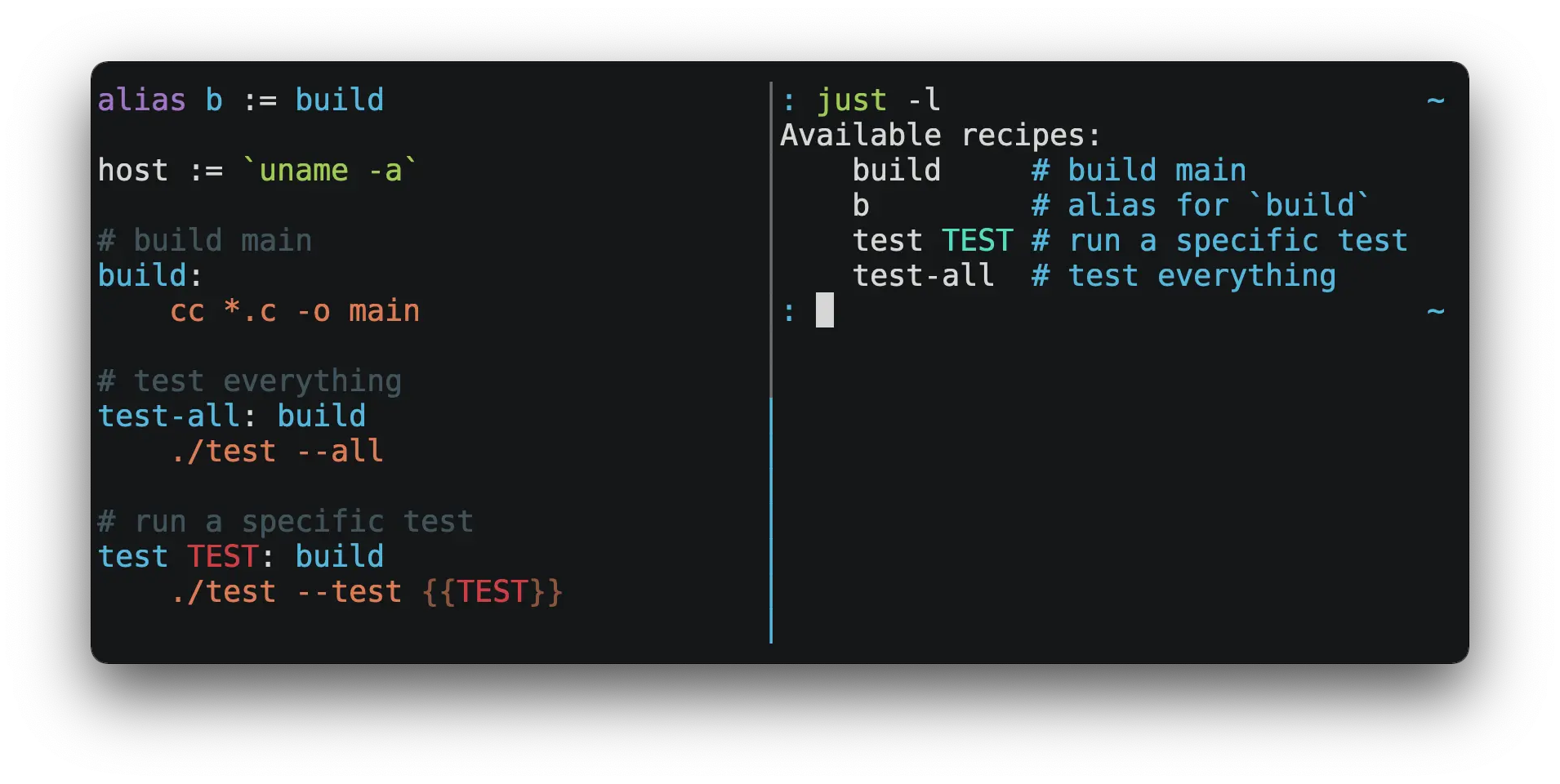
You can then run them with just RECIPE:
shell
$ just test-all
cc *.c -o main
./test --all
Yay, all your tests passed!
Usage
Initialize new justfile:
shell
just --init
Print what just would do without doing it:
shell
just --dry-run
List available recipes and their arguments:
shell
just -l
just --list
List names of variables:
shell
just --variables
Options
| Option | Description |
|---|---|
--dotenv-filename <DOTENV-FILENAME> | Search for environment file named <DOTENV-FILENAME> instead of .env |
--dotenv-path <DOTENV-PATH> | Load environment file at <DOTENV-PATH> instead of searching for one |
-f, --justfile <JUSTFILE> | Use <JUSTFILE> as justfile |
--list-heading <TEXT> | Print <TEXT> before list |
--set <VARIABLE> <VALUE> | Override <VARIABLE> with <VALUE> |
-d, --working-directory <WORKING-DIRECTORY> | Use <WORKING-DIRECTORY> as working directory. --justfile must also be set |
Quick Start
Create a file named justfile in the root of your project with the following contents:
recipe-name:
echo 'This is a recipe!'
# this is a comment
another-recipe:
@echo 'This is another recipe.'
When you invoke just it looks for file justfile in the current directory and upwards, so you can invoke it from any subdirectory of your project.
The search for a justfile is case insensitive, so any case, like Justfile, JUSTFILE, or JuStFiLe, will work. just will also look for files with the name .justfile, in case you’d like to hide a justfile.
Running just with no arguments runs the first recipe in the justfile:
shell
$ just
echo 'This is a recipe!'
This is a recipe!
One or more arguments specify the recipe(s) to run:
shell
$ just another-recipe
This is another recipe.
just prints each command to standard error before running it, which is why echo 'This is a recipe!' was printed. This is suppressed for lines starting with @, which is why echo 'This is another recipe.' was not printed.
Recipes stop running if a command fails. Here cargo publish will only run if cargo test succeeds:
publish:
cargo test # tests passed, time to publish!
cargo publish
Recipes can depend on other recipes. Here the test recipe depends on the build recipe, so build will run before test:
build:
cc main.c foo.c bar.c -o main
test: build
./test
sloc:
@echo "`wc -l *.c` lines of code"
shell
$ just test
cc main.c foo.c bar.c -o main
./test
testing… all tests passed!`
Recipes without dependencies will run in the order they’re given on the command line:
shell
$ just build sloc
cc main.c foo.c bar.c -o main
1337 lines of code
Features
Default Recipe
When just is invoked without a recipe, it runs the first recipe in the justfile. This recipe might be the most frequently run command in the project, like running the tests:
test:
cargo test
You can also use dependencies to run multiple recipes by default:
default: lint build test
build:
echo Building
test:
echo Testing
lint:
echo Linting
If no recipe makes sense as the default recipe, you can add a recipe to the beginning of your justfile that lists the available recipes:
default:
@just --list
Listing Available Recipes
Recipes can be listed in alphabetical order with just --list:
shell
$ just --list
Available recipes:
build
test
deploy
lint
just --summary is more concise:
shell
$ just --summary
build test deploy lint
If you'd like just to default to listing the recipes in the justfile, you can use this as your default recipe:
just
default:
@just --list
Note that you may need to add --justfile {{justfile()}} to the line above above. Without it, if you executed just -f /some/distant/justfile -d . or just -f ./non-standard-justfile, the plain just --list inside the recipe would not necessarily use the file you provided. It would try to find a justfile in your current path, maybe even resulting in a No justfile found error.
The heading text can be customized with --list-heading:
shell
$ just --list --list-heading $'Cool stuff…\n'
Cool stuff…
test
build
Aliases
Aliases allow recipes to be invoked with alternative names:
just
alias b := build
build:
echo 'Building!'
shell
$ just b
build
echo 'Building!'
Building!
Settings
Settings control interpretation and execution. Each setting may be specified at most once, anywhere in the justfile.
For example:
just
set shell := ["zsh", "-cu"]
foo:
# this line will be run as `zsh -cu 'ls **/*.txt'`
ls **/*.txt
Table of Settings
| Name | Value | Default | Description |
|---|---|---|---|
allow-duplicate-recipes | boolean | false | Allow recipes appearing later in a justfile to override earlier recipes with the same name. |
dotenv-filename | string | - | Load a .env file with a custom name, if present. |
dotenv-load | boolean | false | Load a .env file, if present. |
dotenv-path | string | - | Load a .env file from a custom path, if present. Overrides dotenv-filename. |
export | boolean | false | Export all variables as environment variables. |
fallback | boolean | false | Search justfile in parent directory if the first recipe on the command line is not found. |
ignore-comments | boolean | false | Ignore recipe lines beginning with #. |
positional-arguments | boolean | false | Pass positional arguments. |
shell | [COMMAND, ARGS…] | - | Set the command used to invoke recipes and evaluate backticks. |
tempdir | string | - | Create temporary directories in tempdir instead of the system default temporary directory. |
windows-powershell | boolean | false | Use PowerShell on Windows as default shell. (Deprecated. Use windows-shell instead. |
windows-shell | [COMMAND, ARGS…] | - | Set the command used to invoke recipes and evaluate backticks. |
Dotenv Settings
If dotenv-load, dotenv-filename or dotenv-path is set, just will load environment variables from a file.
If dotenv-path is set, just will look for a file at the given path.
Otherwise, just looks for a file named .env by default, unless dotenv-filename set, in which case the value of dotenv-filename is used. This file can be located in the same directory as your justfile or in a parent directory.
The loaded variables are environment variables, not just variables, and so must be accessed using $VARIABLE_NAME in recipes and backticks.
For example, if your .env file contains:
shell
# a comment, will be ignored
DATABASE_ADDRESS=localhost:6379
SERVER_PORT=1337
And your justfile contains:
just
set dotenv-load
serve:
@echo "Starting server with database $DATABASE_ADDRESS on port $SERVER_PORT…"
./server --database $DATABASE_ADDRESS --port $SERVER_PORT
just serve will output:
shell
$ just serve
Starting server with database localhost:6379 on port 1337…
./server --database $DATABASE_ADDRESS --port $SERVER_PORT
Positional Arguments
If positional-arguments is true, recipe arguments will be passed as positional arguments to commands. For linewise recipes, argument $0 will be the name of the recipe.
For example, running this recipe:
just
set positional-arguments
@foo bar:
echo $0
echo $1
Will produce the following output:
shell
$ just foo hello
foo
hello
When using an sh-compatible shell, such as bash or zsh, $@ expands to the positional arguments given to the recipe, starting from one. When used within double quotes as "$@", arguments including whitespace will be passed on as if they were double-quoted. That is, "$@" is equivalent to "$1" "$2"… When there are no positional parameters, "$@" and $@ expand to nothing (i.e., they are removed).
This example recipe will print arguments one by one on separate lines:
just
set positional-arguments
@test *args='':
bash -c 'while (( "$#" )); do echo - $1; shift; done' -- "$@"
Running it with two arguments:
shell
$ just test foo "bar baz"
- foo
- bar baz
Shell
The shell setting controls the command used to invoke recipe lines and backticks. Shebang recipes are unaffected.
just
# use python3 to execute recipe lines and backticks
set shell := ["python3", "-c"]
# use print to capture result of evaluation
foos := `print("foo" * 4)`
foo:
print("Snake snake snake snake.")
print("{{foos}}")
just passes the command to be executed as an argument. Many shells will need an additional flag, often -c, to make them evaluate the first argument.
Documentation Comments
Comments immediately preceding a recipe will appear in just --list:
just
# build stuff
build:
./bin/build
# test stuff
test:
./bin/test
shell
$ just --list
Available recipes:
build # build stuff
test # test stuff
Variables and Substitution
Variables, strings, concatenation, path joining, and substitution using {{…}} are supported:
just
tmpdir := `mktemp -d`
version := "0.2.7"
tardir := tmpdir / "awesomesauce-" + version
tarball := tardir + ".tar.gz"
publish:
rm -f {{tarball}}
mkdir {{tardir}}
cp README.md *.c {{tardir}}
tar zcvf {{tarball}} {{tardir}}
scp {{tarball}} me@server.com:release/
rm -rf {{tarball}} {{tardir}}
Joining Paths
The / operator can be used to join two strings with a slash:
just
foo := "a" / "b"
$ just --evaluate foo
a/b
Note that a / is added even if one is already present:
just
foo := "a/"
bar := foo / "b"
$ just --evaluate bar
a//b
Absolute paths can also be constructed:
just
foo := / "b"
$ just --evaluate foo
/b
Escaping {{
To write a recipe containing {{, use {{{{:
just
braces:
echo 'I {{{{LOVE}} curly braces!'
(An unmatched }} is ignored, so it doesn't need to be escaped.)
Another option is to put all the text you'd like to escape inside of an interpolation:
just
braces:
echo '{{'I {{LOVE}} curly braces!'}}'
Yet another option is to use {{ "{{" }}:
just
braces:
echo 'I {{ "{{" }}LOVE}} curly braces!'
Ignoring Errors
Normally, if a command returns a non-zero exit status, execution will stop. To continue execution after a command, even if it fails, prefix the command with -:
just
foo:
-cat foo
echo 'Done!'
shell
$ just foo
cat foo
cat: foo: No such file or directory
echo 'Done!'
Done!
Functions
just provides a few built-in functions that might be useful when writing recipes.
System Information
• arch() — Instruction set architecture. Possible values are: "aarch64", "arm", "asmjs", "hexagon", "mips", "msp430", "powerpc", "powerpc64", "s390x", "sparc", "wasm32", "x86", "x86_64", and "xcore".
• num_cpus() - Number of logical CPUs.
• os() — Operating system. Possible values are: "android", "bitrig", "dragonfly", "emscripten", "freebsd", "haiku", "ios", "linux", "macos", "netbsd", "openbsd", "solaris", and "windows".
• os_family() — Operating system family; possible values are: "unix" and "windows".
For example:
just
system-info:
@echo "This is an {{arch()}} machine".
shell
$ just system-info
This is an x86_64 machine
• env_var(key) — Retrieves the environment variable with name key, aborting if it is not present.
just
home_dir := env_var('HOME')
test:
echo "{{home_dir}}"
shell
$ just
/home/user1
• env_var_or_default(key, default) — Retrieves the environment variable with name key, returning default if it is not present.
• env(key) — Alias for env_var(key).
• env(key, default) — Alias for env_var_or_default(key, default).
Invocation Directory
• invocation_directory() - Retrieves the absolute path to the current directory when just was invoked.
For example, to call rustfmt on files just under the "current directory" (from the user/invoker's perspective), use the following rule:
just
rustfmt:
find {{invocation_directory()}} -name \*.rs -exec rustfmt {} \;
Alternatively, if your command needs to be run from the current directory, you could use (e.g.):
just
build:
cd {{invocation_directory()}}; ./some_script_that_needs_to_be_run_from_here
Justfile and Justfile Directory
• justfile() - Retrieves the path of the current justfile.
• justfile_directory() - Retrieves the path of the parent directory of the current justfile.
For example, to run a command relative to the location of the current justfile:
just
script:
./{{justfile_directory()}}/scripts/some_script
Just Executable
• just_executable() - Absolute path to the just executable.
For example:
just
executable:
@echo The executable is at: {{just_executable()}}
shell
$ just
The executable is at: /bin/just
String Manipulation
• quote(s) - Replace all single quotes with '\'' and prepend and append single quotes to s. This is sufficient to escape special characters for many shells, including most Bourne shell descendants.
• replace(s, from, to) - Replace all occurrences of from in s to to.
• replace_regex(s, regex, replacement) - Replace all occurrences of regex in s to replacement. Regular expressions are provided by the Rust regex crate. See the syntax documentation for usage examples. Capture groups are supported. The replacement string uses Replacement string syntax.
• trim(s) - Remove leading and trailing whitespace from s.
• trim_end(s) - Remove trailing whitespace from s.
• trim_end_match(s, pat) - Remove suffix of s matching pat.
• trim_end_matches(s, pat) - Repeatedly remove suffixes of s matching pat.
• trim_start(s) - Remove leading whitespace from s.
• trim_start_match(s, pat) - Remove prefix of s matching pat.
• trim_start_matches(s, pat) - Repeatedly remove prefixes of s matching pat.
Case Conversion
• capitalize(s) - Convert first character of s to uppercase and the rest to lowercase.
• kebabcase(s) - Convert s to kebab-case.
• lowercamelcase(s) - Convert s to lowerCamelCase.
• lowercase(s) - Convert s to lowercase.
• shoutykebabcase(s) - Convert s to SHOUTY-KEBAB-CASE.
• shoutysnakecase(s) - Convert s to SHOUTY_SNAKE_CASE.
• snakecase(s) - Convert s to snake_case.
• titlecase(s) - Convert s to Title Case.
• uppercamelcase(s) - Convert s to UpperCamelCase.
• uppercase(s) - Convert s to uppercase.
Path Manipulation
Fallible
• absolute_path(path) - Absolute path to relative path in the working directory. absolute_path("./bar.txt") in directory /foo is /foo/bar.txt.
• extension(path) - Extension of path. extension("/foo/bar.txt") is txt.
• file_name(path) - File name of path with any leading directory components removed. file_name("/foo/bar.txt") is bar.txt.
• file_stem(path) - File name of path without extension. file_stem("/foo/bar.txt") is bar.
• parent_directory(path) - Parent directory of path. parent_directory("/foo/bar.txt") is /foo.
• without_extension(path) - path without extension. without_extension("/foo/bar.txt") is /foo/bar.
These functions can fail, for example if a path does not have an extension, which will halt execution.
Infallible
• clean(path) - Simplify path by removing extra path separators, intermediate . components, and .. where possible. clean("foo//bar") is foo/bar, clean("foo/..") is ., clean("foo/./bar") is foo/bar.
• join(a, b…) - This function uses / on Unix and \ on Windows, which can be lead to unwanted behavior. The / operator, e.g., a / b, which always uses /, should be considered as a replacement unless \s are specifically desired on Windows. Join path a with path b. join("foo/bar", "baz") is foo/bar/baz. Accepts two or more arguments.
Filesystem Access
• path_exists(path) - Returns true if the path points at an existing entity and false otherwise. Traverses symbolic links, and returns false if the path is inaccessible or points to a broken symlink.
Error Reporting
• error(message) - Abort execution and report error message to user.
UUID and Hash Generation
Recipe Attributes
Recipes may be annotated with attributes that change their behavior.
| Name | Description |
|---|---|
[no-cd] | Don't change directory before executing recipe. |
[no-exit-message] | Don't print an error message if recipe fails. |
[linux] | Enable recipe on Linux. |
[macos] | Enable recipe on MacOS. |
[unix] | Enable recipe on Unixes. (Includes MacOS). |
[windows] | Enable recipe on Windows. |
[private]1 | See Private Recipes. |
A recipe can have multiple attributes, either on multiple lines:
just
[no-cd]
[private]
foo:
echo "foo"
Or separated by commas on a single line:
just
[no-cd, private]
foo:
echo "foo"
Enabling and Disabling Recipes
The [linux], [macos], [unix], and [windows] attributes are configuration attributes. By default, recipes are always enabled. A recipe with one or more configuration attributes will only be enabled when one or more of those configurations is active.
This can be used to write justfiles that behave differently depending on which operating system they run on. The run recipe in this justfile will compile and run main.c, using a different C compiler and using the correct output binary name for that compiler depending on the operating system:
just
[unix]
run:
cc main.c
./a.out
[windows]
run:
cl main.c
main.exe
Disabling Changing Directory
just normally executes recipes with the current directory set to the directory that contains the justfile. This can be disabled using the [no-cd] attribute. This can be used to create recipes which use paths relative to the invocation directory, or which operate on the current directory.
For example, this commit recipe:
just
[no-cd]
commit file:
git add {{file}}
git commit
Can be used with paths that are relative to the current directory, because [no-cd] prevents just from changing the current directory when executing commit.
Command Evaluation Using Backticks
Backticks can be used to store the result of commands:
just
localhost := `dumpinterfaces | cut -d: -f2 | sed 's/\/.*//' | sed 's/ //g'`
serve:
./serve {{localhost}} 8080
Indented backticks, delimited by three backticks, are de-indented in the same manner as indented strings:
<pre><code>just
# This backtick evaluates the command `echo foo\necho bar\n`, which produces the value `foo\nbar\n`.
stuff := ``` echo foo echo bar
```
</code></pre>
Conditional Expressions
if/else expressions evaluate different branches depending on if two expressions evaluate to the same value:
just
foo := if "2" == "2" { "Good!" } else { "1984" }
bar: @echo "{{foo}}"
shell
$ just bar Good!
It is also possible to test for inequality:
just
foo := if "hello" != "goodbye" { "xyz" } else { "abc" }
bar: @echo {{foo}}
shell
$ just bar xyz
And match against regular expressions:
just
foo := if "hello" =~ 'hel+o' { "match" } else { "mismatch" }
bar: @echo {{foo}}
shell
$ just bar match
Regular expressions are provided by the regex crate, whose syntax is documented on docs.rs. Since regular expressions commonly use backslash escape sequences, consider using single-quoted string literals, which will pass slashes to the regex parser unmolested.
Conditional expressions short-circuit, which means they only evaluate one of their branches. This can be used to make sure that backtick expressions don't run when they shouldn't.
just
foo := if env_var("RELEASE") == "true" { `get-something-from-release-database` } else { "dummy-value" }
Conditionals can be used inside of recipes:
just
bar foo: echo {{ if foo == "bar" { "hello" } else { "goodbye" } }}
Note the space after the final }! Without the space, the interpolation will be prematurely closed.
Multiple conditionals can be chained:
just
foo := if "hello" == "goodbye" { "xyz" } else if "a" == "a" { "abc" } else { "123" }
bar: @echo {{foo}}
shell
$ just bar abc
Stopping execution with error
Execution can be halted with the error function. For example:
just
foo := if "hello" == "goodbye" { "xyz" } else if "a" == "b" { "abc" } else { error("123") }
Which produce the following error when run:
error: Call to function `error` failed: 123
|
16 | error("123")
Setting Variables from the Command Line
Variables can be overridden from the command line.
just
os := "linux"
test: build ./test --test {{os}}
build: ./build {{os}}
shell
$ just ./build linux ./test --test linux
Any number of arguments of the form NAME=VALUE can be passed before recipes:
shell
$ just os=plan9 ./build plan9 ./test --test plan9
Or you can use the --set flag:
shell
$ just --set os bsd ./build bsd ./test --test bsd
Getting and Setting Environment Variables
Exporting just Variables
Assignments prefixed with the export keyword will be exported to recipes as environment variables:
just
export RUST_BACKTRACE := "1"
test:
# will print a stack trace if it crashes
cargo test
Parameters prefixed with a $ will be exported as environment variables:
just
test $RUST_BACKTRACE="1":
# will print a stack trace if it crashes
cargo test
Exported variables and parameters are not exported to backticks in the same scope.
just
export WORLD := "world"
# This backtick will fail with "WORLD: unbound variable"
BAR := `echo hello $WORLD`
just
# Running `just a foo` will fail with "A: unbound variable"
a $A $B=`echo $A`: echo $A $B
Environment variables from the environment are passed automatically to the recipes.
just
print_home_folder: echo "HOME is: '${HOME}'"
shell
$ just HOME is '/home/myuser'
Environment variables can be propagated to just variables using the functions env_var() and env_var_or_default().
Recipe Parameters
Recipes may have parameters. Here recipe build has a parameter called target:
just
build target: @echo 'Building {{target}}…' cd {{target}} && make
To pass arguments on the command line, put them after the recipe name:
shell
$ just build my-awesome-project Building my-awesome-project… cd my-awesome-project && make
To pass arguments to a dependency, put the dependency in parentheses along with the arguments:
just
default: (build "main")
build target: @echo 'Building {{target}}…' cd {{target}} && make
Variables can also be passed as arguments to dependencies:
just
target := "main"
_build version: @echo 'Building {{version}}…' cd {{version}} && make
build: (_build target)
A command's arguments can be passed to dependency by putting the dependency in parentheses along with the arguments:
just
build target: @echo "Building {{target}}…"
push target: (build target) @echo 'Pushing {{target}}…'
Parameters may have default values:
just
default := 'all'
test target tests=default: @echo 'Testing {{target}}:{{tests}}…' ./test --tests {{tests}} {{target}}
Parameters with default values may be omitted:
shell
$ just test server Testing server:all… ./test --tests all server
Or supplied:
shell
$ just test server unit Testing server:unit… ./test --tests unit server
Default values may be arbitrary expressions, but concatenations or path joins must be parenthesized:
just
arch := "wasm"
test triple=(arch + "-unknown-unknown") input=(arch / "input.dat"): ./test {{triple}}
The last parameter of a recipe may be variadic, indicated with either a + or a * before the argument name:
just
backup +FILES: scp {{FILES}} me@server.com:
Variadic parameters prefixed with + accept one or more arguments and expand to a string containing those arguments separated by spaces:
shell
$ just backup FAQ.md GRAMMAR.md scp FAQ.md GRAMMAR.md me@server.com: FAQ.md 100% 1831 1.8KB/s 00:00 GRAMMAR.md 100% 1666 1.6KB/s 00:00
Variadic parameters prefixed with * accept zero or more arguments and expand to a string containing those arguments separated by spaces, or an empty string if no arguments are present:
just
commit MESSAGE *FLAGS: git commit {{FLAGS}} -m "{{MESSAGE}}"
Variadic parameters can be assigned default values. These are overridden by arguments passed on the command line:
just
test +FLAGS='-q': cargo test {{FLAGS}}
{{…}} substitutions may need to be quoted if they contain spaces. For example, if you have the following recipe:
just
search QUERY: lynx https://www.google.com/?q={{QUERY}}
And you type:
shell
$ just search "cat toupee"
just will run the command lynx https://www.google.com/?q=cat toupee, which will get parsed by sh as lynx, https://www.google.com/?q=cat, and toupee, and not the intended lynx and https://www.google.com/?q=cat toupee.
You can fix this by adding quotes:
just
search QUERY: lynx 'https://www.google.com/?q={{QUERY}}'
Parameters prefixed with a $ will be exported as environment variables:
just
foo $bar: echo $bar
Running Recipes at the End of a Recipe
Normal dependencies of a recipes always run before a recipe starts. That is to say, the dependee always runs before the depender. These dependencies are called "prior dependencies".
A recipe can also have subsequent dependencies, which run after the recipe and are introduced with an &&:
just
a: echo 'A!'
b: a && c d echo 'B!'
c: echo 'C!'
d: echo 'D!'
…running b prints:
shell
$ just b echo 'A!' A! echo 'B!' B! echo 'C!' C! echo 'D!' D!
Running Recipes in the Middle of a Recipe
just doesn't support running recipes in the middle of another recipe, but you can call just recursively in the middle of a recipe. Given the following justfile:
just
a: echo 'A!'
b: a echo 'B start!' just c echo 'B end!'
c: echo 'C!'
…running b prints:
shell
$ just b echo 'A!' A! echo 'B start!' B start! echo 'C!' C! echo 'B end!' B end!
This has limitations, since recipe c is run with an entirely new invocation of just: Assignments will be recalculated, dependencies might run twice, and command line arguments will not be propagated to the child just process.
Writing Recipes in Other Languages
Recipes that start with #! are called shebang recipes, and are executed by saving the recipe body to a file and running it. This lets you write recipes in different languages:
just
polyglot: python js perl sh ruby nu
python:
#!/usr/bin/env python3
print('Hello from python!')
js:
#!/usr/bin/env node
console.log('Greetings from JavaScript!')
perl:
#!/usr/bin/env perl
print "Larry Wall says Hi!\n";
sh:
#!/usr/bin/env sh
hello='Yo' echo "$hello from a shell script!"
nu:
#!/usr/bin/env nu
let hello = 'Hola' echo $"($hello) from a nushell script!"
ruby:
#!/usr/bin/env ruby
puts "Hello from ruby!"
shell
$ just polyglot Hello from python! Greetings from JavaScript! Larry Wall says Hi! Yo from a shell script! Hola from a nushell script! Hello from ruby!
On Unix-like operating systems, including Linux and MacOS, shebang recipes are executed by saving the recipe body to a file in a temporary directory, marking the file as executable, and executing it. The OS then parses the shebang line into a command line and invokes it, including the path to the file. For example, if a recipe starts with #!/usr/bin/env bash, the final command that the OS runs will be something like /usr/bin/env bash /tmp/PATH_TO_SAVED_RECIPE_BODY. Keep in mind that different operating systems split shebang lines differently.
Windows does not support shebang lines. On Windows, just splits the shebang line into a command and arguments, saves the recipe body to a file, and invokes the split command and arguments, adding the path to the saved recipe body as the final argument.
Multi-Line Constructs
Recipes without an initial shebang are evaluated and run line-by-line, which means that multi-line constructs probably won't do what you want.
For example, with the following justfile:
makefile
conditional: if true; then echo 'True!' fi
The extra leading whitespace before the second line of the conditional recipe will produce a parse error:
shell
$ just conditional error: Recipe line has extra leading whitespace
|
3 | echo 'True!'
| ^^^^^^^^^^^^^^^^
To work around this, you can write conditionals on one line, escape newlines with slashes, or add a shebang to your recipe. Some examples of multi-line constructs are provided for reference.
if statements
just
conditional: if true; then echo 'True!'; fi
just
conditional: if true; then \
echo 'True!'; \
fi
just
conditional:
#!/usr/bin/env sh
if true; then echo 'True!' fi
for loops
just
for: for file in `ls .`; do echo $file; done
just
for: for file in `ls .`; do \
echo $file; \
done
just
for:
#!/usr/bin/env sh
for file in `ls .`; do echo $file done
while loops
just
while: while `server-is-dead`; do ping -c 1 server; done
just
while: while `server-is-dead`; do \
ping -c 1 server; \
done
just
while:
#!/usr/bin/env sh
while `server-is-dead`; do ping -c 1 server done
Private Recipes
Recipes and aliases whose name starts with a _ are omitted from just --list:
just
test: _test-helper ./bin/test
_test-helper: ./bin/super-secret-test-helper-stuff
shell
$ just --list Available recipes: test
The [private] attribute may also be used to hide recipes or aliases without needing to change the name:
just
[private] foo:
[private] alias b := bar
bar:
shell
$ just --list Available recipes: bar
This is useful for helper recipes which are only meant to be used as dependencies of other recipes.