Yazi
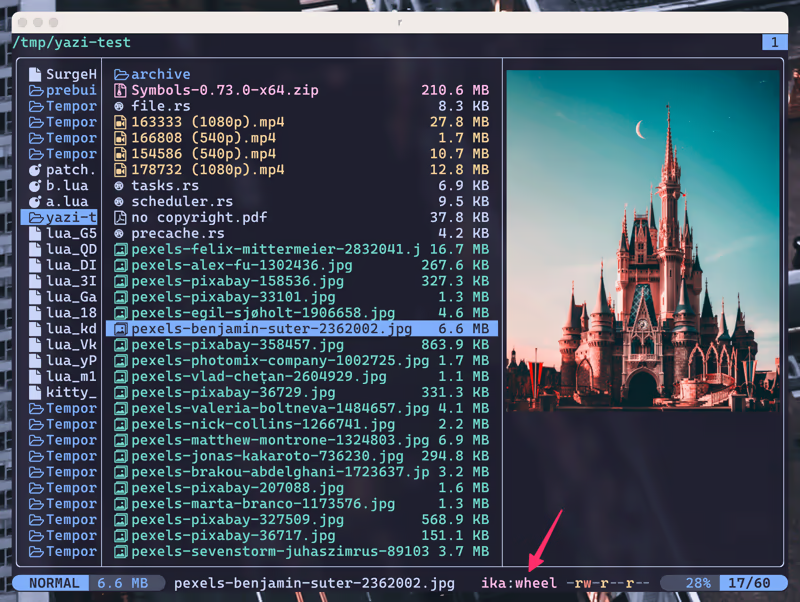
Yazi (means “duck”) is a terminal file manager written in Rust, based on non-blocking async I/O. It aims to provide an efficient, user-friendly, and customizable file management experience.
Features
- 🚀 Full Asynchronous Support: All I/O operations are asynchronous, CPU tasks are spread across multiple threads, making the most of available resources.
- 💪 Powerful Async Task Scheduling and Management: Provides real-time progress updates, task cancellation, and internal task priority assignment.
- 🖼️ Built-in Support for Multiple Image Protocols: Also integrated with Überzug++, covering almost all terminals.
- 🌟 Built-in Code Highlighting and Image Decoding: Combined with the pre-loading mechanism, greatly accelerates image and normal file loading.
- 🔌 Concurrent Plugin System: UI plugins (rewriting most of the UI), functional plugins, custom previewer, and custom preloader; Just some pieces of Lua.
- 🧰 Integration with fd, rg, fzf, zoxide
- 💫 Vim-like input/select/notify component, auto-completion for cd paths
- 🏷️ Multi-Tab Support, Cross-directory selection, Scrollable Preview (for videos, PDFs, archives, directories, code, etc.)
- 🔄 Bulk Renaming, Visual Mode, File Chooser
- 🎨 Theme System, Custom Layouts, Trash Bin, CSI u
- … and more!
Dependencies
To use Yazi, you must have the following prerequisites installed:
file(for file type detection)
Yazi can be optionally extended with other command line tools to enable additional features.
nerd-fonts(recommended)ffmpegthumbnailer(for video thumbnails)unar(for archive preview)jq(for JSON preview)poppler(for PDF preview)fd(for file searching)rg(for file content searching)fzf(for quick file subtree navigation)zoxide(for historical directories navigation)
Shell Wrapper
We suggest using this ya shell wrapper that provides the ability to change the current working directory when exiting Yazi.
function ya() {
	local tmp="$(mktemp -t "yazi-cwd.XXXXX")"
	yazi "$@" --cwd-file="$tmp"
	if cwd="$(cat -- "$tmp")" && [ -n "$cwd" ] && [ "$cwd" != "$PWD" ]; then
		cd -- "$cwd"
	fi
	rm -f -- "$tmp"
}
Keybindings
Navigation
To navigate between files and directories you can use the arrow keys ←, ↑, ↓ and → or Vim-like commands such as h, j, k, l:
| Key binding | Alternate key | Action |
|---|---|---|
k | ↑ | Move the cursor up |
j | ↓ | Move the cursor down |
l | → | Enter hovered directory |
h | ← | Leave the current directory and into its parent |
Further navigation commands can be found in the table below.
| Key binding | Action |
|---|---|
K | Move the cursor up 5 lines |
J | Move the cursor down 5 lines |
g ⇒ g | Move cursor to the top |
G | Move cursor to the bottom |
Selection
To select files and directories, the following commands are available.
| Key binding | Action |
|---|---|
<Space> | Toggle selection of hovered file/directory |
v | Enter visual mode (selection mode) |
V | Enter visual mode (unset mode) |
<Ctrl-a> | Select all files |
<Ctrl-r> | Inverse selection of all files |
<Esc> | Cancel selection |
File/directory operations
To interact with selected files/directories use any of the commands below.
| Key binding | Action |
|---|---|
o | Open the selected files |
O | Open the selected files interactively |
<Enter> | Open the selected files |
<Ctrl-Enter> | Open the selected files interactively (some terminals don’t support it yet) |
y | Yank the selected files (copy) |
x | Yank the selected files (cut) |
p | Paste the yanked files |
P | Paste the yanked files (overwrite if the destination exists) |
- | Create a symbolic link to the yanked files (absolute path) |
_ | Create a symbolic link to the yanked files (relative path) |
d | Move the files to the trash |
D | Permanently delete the files |
a | Create a file or directory (ends with ”/” for directories) |
r | Rename a file or directory |
; | Run a shell command |
: | Run a shell command (block the UI until the command finishes) |
. | Toggle the visibility of hidden files |
<Ctrl-s> | Cancel the ongoing search |
z | Jump to a directory using zoxide |
Z | Jump to a directory, or reveal a file using fzf |
w | Show task manager |
Copying paths
To copy paths, use any of the following commands below.
Observation:
c ⇒ dindicates pressing theckey followed by pressing thedkey.
| Key binding | Action |
|---|---|
c ⇒ c | Copy absolute path |
c ⇒ d | Copy the path of the parent directory |
c ⇒ f | Copy the name of the file |
c ⇒ n | Copy the name of the file without the extension |
Filtering files/directories
| Key binding | Action |
|---|---|
f | Filter the files/directories in CWD |
Finding files/directories
| Key binding | Action |
|---|---|
/ | Forward find file/directory in CWD |
? | Backward find file/directory in CWD |
n | Jump to next occurrence |
N | Jump to previous occurrence |
Searching files/directories
Sorting
To sort files/directories use the following commands.
Observation:
, ⇒ aindicates pressing the,key followed by pressing theakey.
| Key binding | Action |
|---|---|
, ⇒ m | Sort by modified time |
, ⇒ M | Sort by modified time (reverse) |
, ⇒ c | Sort by creation time |
, ⇒ C | Sort by creation time (reverse) |
, ⇒ e | Sort by file extension |
, ⇒ E | Sort by file extension (reverse) |
, ⇒ a | Sort alphabetically |
, ⇒ A | Sort alphabetically (reverse) |
, ⇒ n | Sort naturally |
, ⇒ N | Sort naturally (reverse) |
, ⇒ s | Sort by size |
, ⇒ S | Sort by size (reverse) |
Line Mode
You can change the output of the line mode with the following commands:
| Key binding | Action |
|---|---|
ms | Set linemode to size |
mp | Set linemode to permissions |
mm | Set linemode to mtime |
mn | Set linemode to none |
Changing directories
You can quickly change directories with these commands:
| Key binding | Action |
|---|---|
gh | Go to the home directory |
gc | Go to the config directory |
gd | Go to the downloads directory |
gt | Go to the temporary directory |
g + <Space> | Go to a directory interactively |
Tabs
You can use tabs with the following commands:
| Key binding | Action |
|---|---|
<Ctrl-q> | Close current tab |
t | Create a new tab using current path |
1-9 | Switch to tab with number |
[ | Switch to the previous tab |
] | Switch to the next tab |
{ | Swap the current tab with the previous tab |
} | Swap the current tab with the next tab |
Configuration
There are three configuration files for Yazi:
yazi.toml- General configuration.keymap.toml- Keybindings configuration.theme.toml- Color scheme configuration.
You can find the default configuration files at https://github.com/sxyazi/yazi/tree/latest/yazi-config/preset.
You can change the Yazi configuration directory by exporting the YAZI_CONFIG_HOME environment variable.