micro
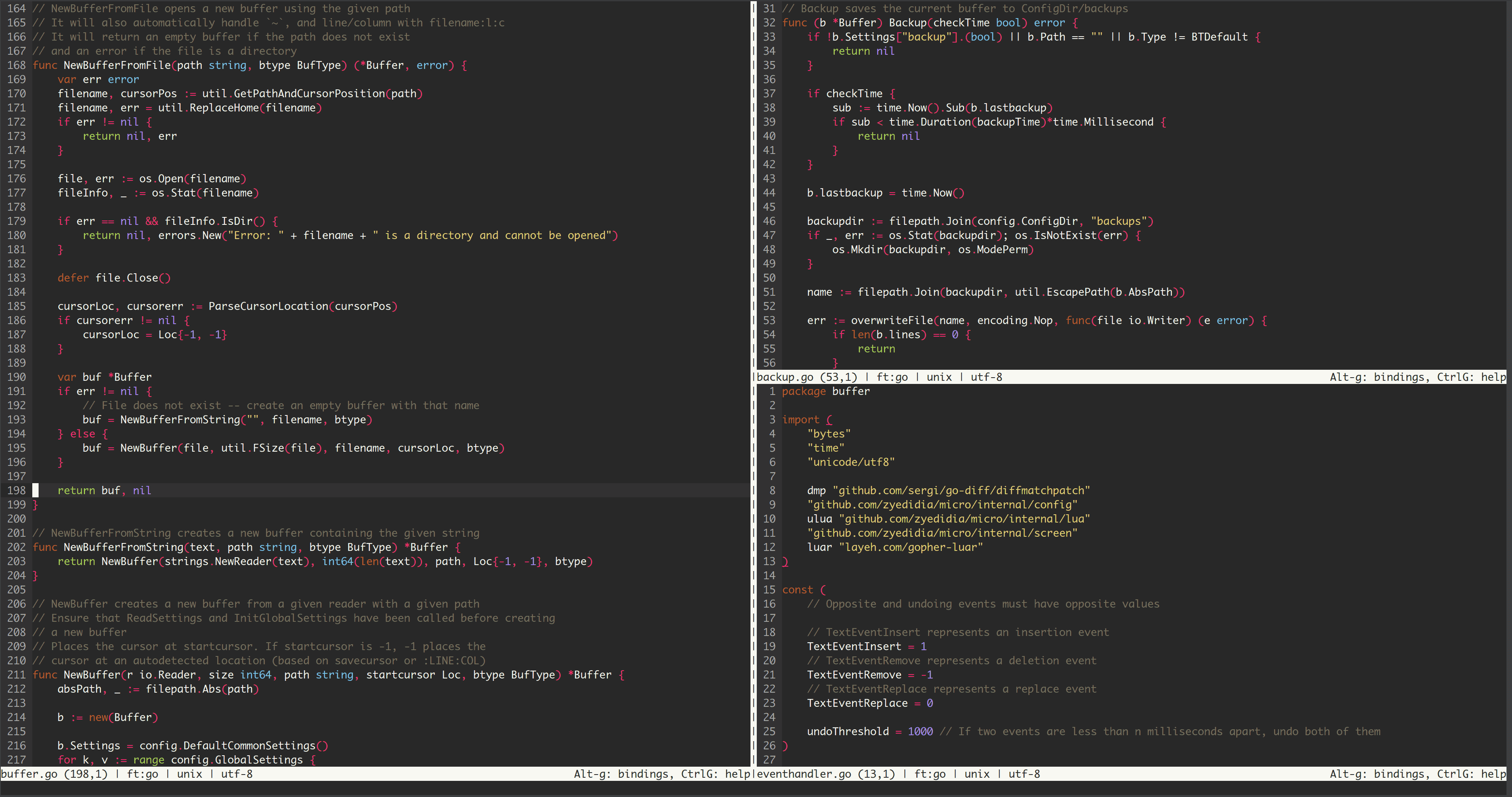
micro is a terminal-based text editor that aims to be easy to use and intuitive, while also taking advantage of the capabilities of modern terminals. It comes as a single, batteries-included, static binary with no dependencies; you can download and use it right now!
As its name indicates, micro aims to be somewhat of a successor to the nano editor by being easy to install and use. It strives to be enjoyable as a full-time editor for people who prefer to work in a terminal, or those who regularly edit files over SSH.
Keybindings
Micro has a plethora of hotkeys that make it easy and powerful to use and all hotkeys are fully customizable to your liking.
Custom keybindings are stored internally in micro if changed with the > bind command or can also be added in the file ~/.config/micro/bindings.json
Rebinding keys
The bindings may be rebound using the ~/.config/micro/bindings.json file. Each key is bound to an action.
For example, to bind Ctrl-y to undo and Ctrl-z to redo, you could put the following in the bindings.json file.
{
    "Ctrl-y": "Undo",
    "Ctrl-z": "Redo"
}
Binding commands
You can also bind a key to execute a command in command mode (see help commands). Simply prepend the binding with command:. For example:
{
    "Alt-p": "command:pwd"
}
Bindables
Actions:
CursorUp
CursorDown
CursorPageUp
CursorPageDown
CursorLeft
CursorRight
CursorStart
CursorEnd
SelectToStart
SelectToEnd
SelectUp
SelectDown
SelectLeft
SelectRight
SelectToStartOfText
SelectToStartOfTextToggle
WordRight
WordLeft
SelectWordRight
SelectWordLeft
MoveLinesUp
MoveLinesDown
DeleteWordRight
DeleteWordLeft
SelectLine
SelectToStartOfLine
SelectToEndOfLine
InsertNewline
InsertSpace
Backspace
Delete
Center
InsertTab
Save
SaveAll
SaveAs
Find
FindLiteral
FindNext
FindPrevious
DiffPrevious
DiffNext
Undo
Redo
Copy
CopyLine
Cut
CutLine
DuplicateLine
DeleteLine
IndentSelection
OutdentSelection
OutdentLine
IndentLine
Paste
SelectAll
OpenFile
Start
End
PageUp
PageDown
SelectPageUp
SelectPageDown
HalfPageUp
HalfPageDown
StartOfLine
EndOfLine
StartOfText
StartOfTextToggle
ParagraphPrevious
ParagraphNext
ToggleHelp
ToggleDiffGutter
ToggleRuler
JumpLine
ClearStatus
ShellMode
CommandMode
Quit
QuitAll
AddTab
PreviousTab
NextTab
NextSplit
Unsplit
VSplit
HSplit
PreviousSplit
ToggleMacro
PlayMacro
Suspend (Unix only)
ScrollUp
ScrollDown
SpawnMultiCursor
SpawnMultiCursorUp
SpawnMultiCursorDown
SpawnMultiCursorSelect
RemoveMultiCursor
RemoveAllMultiCursors
SkipMultiCursor
None
JumpToMatchingBrace
Autocomplete
Keys:
Up
Down
Right
Left
UpLeft
UpRight
DownLeft
DownRight
Center
PageUp
PageDown
Home
End
Insert
Delete
Help
Exit
Clear
Cancel
Print
Pause
Backtab
F1
F2
F3
F4
F5
F6
F7
F8
F9
F10
F11
F12
F13
F14
F15
F16
F17
F18
F19
F20
F21
F22
F23
F24
F25
F26
F27
F28
F29
F30
F31
F32
F33
F34
F35
F36
F37
F38
F39
F40
F41
F42
F43
F44
F45
F46
F47
F48
F49
F50
F51
F52
F53
F54
F55
F56
F57
F58
F59
F60
F61
F62
F63
F64
CtrlSpace
Ctrl-a
Ctrl-b
Ctrl-c
Ctrl-d
Ctrl-e
Ctrl-f
Ctrl-g
Ctrl-h
Ctrl-i
Ctrl-j
Ctrl-k
Ctrl-l
Ctrl-m
Ctrl-n
Ctrl-o
Ctrl-p
Ctrl-q
Ctrl-r
Ctrl-s
Ctrl-t
Ctrl-u
Ctrl-v
Ctrl-w
Ctrl-x
Ctrl-y
Ctrl-z
CtrlLeftSq
CtrlBackslash
CtrlRightSq
CtrlCarat
CtrlUnderscore
Backspace
OldBackspace
Tab
Esc
Escape
Enter
Mouse
MouseLeft
MouseMiddle
MouseRight
MouseWheelUp
MouseWheelDown
MouseWheelLeft
MouseWheelRight
Commands
Micro provides the following commands that can be executed at the command-bar by pressing Ctrl-e and entering the command. Arguments are placed in single quotes here but these are not necessary when entering the command in micro.
bind 'key' 'action': creates a keybinding from key to action. See thekeybindingsdocumentation for more information about binding keys. This command will modifybindings.jsonand overwrite any bindings tokeythat already exist.help 'topic'?: opens the corresponding help topic. If no topic is provided opens the default help screen. Help topics are stored as.mdfiles in theruntime/helpdirectory of the source tree, which is embedded in the final binary.save 'filename'?: saves the current buffer. If the file is provided it will ‘save as’ the filename.quit: quits micro.goto 'line': jumps to the given line number. A negative number can be passed to jump inward from the end of the file; for example, -5 jumps to the 5th-last line in the file.replace 'search' 'value' 'flags'?: This will replacesearchwithvalue. Theflagsare optional. Possible flags are:-a: Replace all occurrences at once-l: Do a literal search instead of a regex search
searchmust be a valid regex (unless-lis passed). If one of the arguments does not have any spaces in it, you may omit the quotes.replaceall 'search' 'value': this will replace all occurrences ofsearchwithvaluewithout user confirmation. Seereplacecommand for more information.set 'option' 'value': sets the option to value. See theoptionshelp topic for a list of options you can set. This will modify yoursettings.jsonwith the new value.setlocal 'option' 'value': sets the option to value locally (only in the current buffer). This will not modifysettings.json.show 'option': shows the current value of the given option.run 'sh-command': runs the given shell command in the background. The command’s output will be displayed in one line when it finishes running.vsplit 'filename': opens a vertical split withfilename. If no filename is provided, a vertical split is opened with an empty buffer.hsplit 'filename': same asvsplitbut opens a horizontal split instead of a vertical split.tab 'filename': opens the given file in a new tab.tabmove '[-+]?n': Moves the active tab to another slot.nis an integer. Ifnis prefixed with-or+, then it represents a relative position (e.g.tabmove +2moves the tab to the right by2). Ifnhas no prefix, it represents an absolute position (e.g.tabmove 2moves the tab to slot2).tabswitch 'tab': This command will switch to the specified tab. Thetabcan either be a tab number, or a name of a tab.textfilter 'sh-command': filters the current selection through a shell command as standard input and replaces the selection with the stdout of the shell command. For example, to sort a list of numbers, first select them, and then execute> textfilter sort -n.log: opens a log of all messages and debug statements.plugin list: lists all installed plugins.plugin install 'pl': install a plugin.plugin remove 'pl': remove a plugin.plugin update 'pl': update a plugin (if no arguments are provided updates all plugins).plugin search 'pl': search available plugins for a keyword.plugin available: show available plugins that can be installed.reload: reloads all runtime files.cd 'path': Change the working directory to the givenpath.pwd: Print the current working directory.open 'filename': Open a file in the current buffer.reset 'option': resets the given option to its default valueretab: Replaces all leading tabs with spaces or leading spaces with tabs depending on the value oftabstospaces.raw: micro will open a new tab and show the escape sequence for every event it receives from the terminal. This shows you what micro actually sees from the terminal and helps you see which bindings aren’t possible and why. This is most useful for debugging keybindings.showkey: Show the action(s) bound to a given key. For example running> showkey Ctrl-cwill displayCopy.term exec?: Open a terminal emulator running the given executable. If no executable is given, this will open the default shell in the terminal emulator.
Settings
Micro stores all of the user configuration in its configuration directory.
Micro uses $MICRO_CONFIG_HOME as the configuration directory. If this
environment variable is not set, it uses $XDG_CONFIG_HOME/micro instead. If
that environment variable is not set, it uses ~/.config/micro as the
configuration directory. In the documentation, we use ~/.config/micro to
refer to the configuration directory (even if it may in fact be somewhere else
if you have set either of the above environment variables). Settings are stored in settings.json
Here are the available options:
-
autoindent: when creating a new line, use the same indentation as the previous line.default value:
true -
autosave: automatically save the buffer every n seconds, where n is the value of the autosave option. Also when quitting on a modified buffer, micro will automatically save and quit. Be warned, this option saves the buffer without prompting the user, so data may be overwritten. If this option is set to0, no autosaving is performed.default value:
0 -
autosu: When a file is saved that the user doesn’t have permission to modify, micro will ask if the user would like to use super user privileges to save the file. If this option is enabled, micro will automatically attempt to use super user privileges to save without asking the user.default value:
false -
backup: micro will automatically keep backups of all open buffers. Backups are stored in~/.config/micro/backupsand are removed when the buffer is closed cleanly. In the case of a system crash or a micro crash, the contents of the buffer can be recovered automatically by opening the file that was being edited before the crash, or manually by searching for the backup in the backup directory. Backups are made in the background for newly modified buffers every 8 seconds, or when micro detects a crash.default value:
true -
backupdir: the directory micro should place backups in. For the default value of""(empty string), the backup directory will beConfigDir/backups, which is~/.config/micro/backupsby default. The directory specified for backups will be created if it does not exist.default value:
""(empty string) -
basename: in the infobar and tabbar, show only the basename of the file being edited rather than the full path.default value:
false -
clipboard: specifies how micro should access the system clipboard. Possible values are:external: accesses clipboard via an external tool, such as xclip/xsel or wl-clipboard on Linux, pbcopy/pbpaste on MacOS, and system calls on Windows. On Linux, if you do not have one of the tools installed, or if they are not working, micro will throw an error and use an internal clipboard.terminal: accesses the clipboard via your terminal emulator. Note that there is limited support among terminal emulators for this feature (called OSC 52). Terminals that are known to work are Kitty (enable reading withclipboard_controlsetting), iTerm2 (only copying), st, rxvt-unicode and xterm if enabled (see> help copypastefor details). Note that Gnome-terminal does not support this feature. With this setting, copy-paste will work over ssh. See> help copypastefor details.internal: micro will use an internal clipboard.
default value:
external -
colorcolumn: if this is not set to 0, it will display a column at the specified column. This is useful if you want column 80 to be highlighted special for example.default value:
0 -
colorscheme: loads the colorscheme stored in $(configDir)/colorschemes/option.micro, This setting isglobal only.default value:
defaultNote that the default colorschemes (default, solarized, and solarized-tc) are not located in configDir, because they are embedded in the micro binary.
The colorscheme can be selected from all the files in the ~/.config/micro/colorschemes/ directory. Micro comes by default with three colorschemes:
You can read more about micro’s colorschemes in the
colorshelp topic (help colors). -
cursorline: highlight the line that the cursor is on in a different color (the color is defined by the colorscheme you are using).default value:
true -
diffgutter: display diff indicators before lines.default value:
false -
divchars: specifies the “divider” characters used for the dividing line between vertical/horizontal splits. The first character is for vertical dividers, and the second is for horizontal dividers. By default, for horizontal splits the statusline serves as a divider, but if the statusline is disabled the horizontal divider character will be used.default value:
|- -
divreverse: colorschemes provide the color (foreground and background) for the characters displayed in split dividers. With this option enabled, the colors specified by the colorscheme will be reversed (foreground and background colors swapped).default value:
true -
encoding: the encoding to open and save files with. Supported encodings are listed at https://www.w3.org/TR/encoding/.default value:
utf-8 -
eofnewline: micro will automatically add a newline to the end of the file if one does not exist.default value:
true -
fakecursor: forces micro to render the cursor using terminal colors rather than the actual terminal cursor. This is useful when the terminal’s cursor is slow or otherwise unavailable/undesirable to use.default value:
false -
fastdirty: this determines what kind of algorithm micro uses to determine if a buffer is modified or not. Whenfastdirtyis on, micro just uses a booleanmodifiedthat is set totrueas soon as the user makes an edit. This is fast, but can be inaccurate. Iffastdirtyis off, then micro will hash the current buffer against a hash of the original file (created when the buffer was loaded). This is more accurate but obviously more resource intensive. This option will be automatically disabled if the file size exceeds 50KB.default value:
false -
fileformat: this determines what kind of line endings micro will use for the file. Unix line endings are just\n(linefeed) whereas dos line endings are\r\n(carriage return + linefeed). The two possible values for this option areunixanddos. The fileformat will be automatically detected (when you open an existing file) and displayed on the statusline, but this option is useful if you would like to change the line endings or if you are starting a new file. Changing this option while editing a file will change its line endings. Opening a file with this option set will only have an effect if the file is empty/newly created, because otherwise the fileformat will be automatically detected from the existing line endings.default value:
unix -
filetype: sets the filetype for the current buffer. Set this option tooffto completely disable filetype detection.default value:
unknown. This will be automatically overridden depending on the file you open. -
hlsearch: highlight all instances of the searched text after a successful search. This highlighting can be temporarily turned off via theUnhighlightSearchaction (triggered by the Esc key by default) or toggled on/off via theToggleHighlightSearchaction. Note that these actions don’t change thehlsearchsetting. As long ashlsearchis set to true, the next search will have the highlighting turned on again.default value:
false -
incsearch: enable incremental search in “Find” prompt (matching as you type).default value:
true -
ignorecase: perform case-insensitive searches.default value:
true -
indentchar: sets the indentation character. This will not be inserted into files; it is only a visual indicator that whitespace is present. If set to a printing character, it functions as a subset of the “show invisibles” setting available in many other text editors. The color of this character is determined by theindent-charfield in the current theme rather than the default text color.default value:
-
infobar: enables the line at the bottom of the editor where messages are printed. This option isglobal only.default value:
true -
keepautoindent: when using autoindent, whitespace is added for you. This option determines if when you move to the next line without any insertions the whitespace that was added should be deleted to remove trailing whitespace. By default, the autoindent whitespace is deleted if the line was left empty.default value:
false -
keymenu: display the nano-style key menu at the bottom of the screen. Note that ToggleKeyMenu is bound toAlt-gby default and this is displayed in the statusline. To disable the key binding, bindAlt-gtoNone.default value:
false -
matchbrace: underline matching braces for ’()’, ’{}’, ’[]’ when the cursor is on a brace character.default value:
true -
mkparents: if a file is opened on a path that does not exist, the file cannot be saved because the parent directories don’t exist. This option lets micro automatically create the parent directories in such a situation.default value:
false -
mouse: mouse support. When mouse support is disabled, usually the terminal will be able to access mouse events which can be useful if you want to copy from the terminal instead of from micro (if over ssh for example, because the terminal has access to the local clipboard and micro does not).default value:
true -
multiopen: specifies how to layout multiple files opened at startup. Most useful as a command-line option, like-multiopen vsplit. Possible values correspond to commands (see> help commands) that open files:tab: open each file in a separate tab.vsplit: open files side-by-side.hsplit: open files stacked top to bottom.
default value:
tab -
paste: treat characters sent from the terminal in a single chunk as a paste event rather than a series of manual key presses. If you are pasting using the terminal keybinding (not Ctrl-v, which is micro’s default paste keybinding) then it is a good idea to enable this option during the paste and disable once the paste is over. See> help copypastefor details about copying and pasting in a terminal environment.default value:
false -
parsecursor: if enabled, this will cause micro to parse filenames such as file.txt:10:5 as requesting to openfile.txtwith the cursor at line 10 and column 5. The column number can also be dropped to open the file at a given line and column 0. Note that with this option enabled it is not possible to open a file such asfile.txt:10:5, where:10:5is part of the filename. It is also possible to open a file with a certain cursor location by using the+LINE:COLflag syntax. Seemicro -helpfor the command line options.default value:
false -
permbackup: this option causes backups (seebackupoption) to be permanently saved. With permanent backups, micro will not remove backups when files are closed and will never apply them to existing files. Use this option if you are interested in manually managing your backup files.default value:
false -
pluginchannels: list of URLs pointing to plugin channels for downloading and installing plugins. A plugin channel consists of a json file with links to plugin repos, which store information about plugin versions and download URLs. By default, this option points to the official plugin channel hosted on GitHub at https://github.com/micro-editor/plugin-channel.default value:
https://raw.githubusercontent.com/micro-editor/plugin-channel/master/channel.json -
pluginrepos: a list of links to plugin repositories.default value: “
-
readonly: when enabled, disallows edits to the buffer. It is recommended to only ever set this option locally usingsetlocal.default value:
false -
reload: controls the reload behavior of the current buffer in case the file has changed. The available options areprompt,auto&disabled.default value:
prompt -
rmtrailingws: micro will automatically trim trailing whitespaces at ends of lines. Note: This setting overrideskeepautoindentdefault value:
false -
ruler: display line numbers.default value:
true -
relativeruler: make line numbers display relatively. If set to true, all lines except for the line that the cursor is located will display the distance from the cursor’s line.default value:
false -
savecursor: remember where the cursor was last time the file was opened and put it there when you open the file again. Information is saved to~/.config/micro/buffers/default value:
false -
savehistory: remember command history between closing and re-opening micro. Information is saved to~/.config/micro/buffers/history.default value:
true -
saveundo: when this option is on, undo is saved even after you close a file so if you close and reopen a file, you can keep undoing. Information is saved to~/.config/micro/buffers/.default value:
false -
scrollbar: display a scroll bardefault value:
false -
scrollbarchar: specifies the character used for displaying the scrollbardefault value:
| -
scrollmargin: margin at which the view starts scrolling when the cursor approaches the edge of the view.default value:
3 -
scrollspeed: amount of lines to scroll for one scroll event.default value:
2 -
smartpaste: add leading whitespace when pasting multiple lines. This will attempt to preserve the current indentation level when pasting an unindented block.default value:
true -
softwrap: wrap lines that are too long to fit on the screen.default value:
false -
splitbottom: when a horizontal split is created, create it below the current split.default value:
true -
splitright: when a vertical split is created, create it to the right of the current split.default value:
true -
statusformatl: format string definition for the left-justified part of the statusline. Special directives should be placed inside$(). Special directives include:filename,modified,line,col,lines,percentage,opt,bind. Theoptandbinddirectives take either an option or an action afterward and fill in the value of the option or the key bound to the action.default value:
$(filename) $(modified)($(line),$(col)) $(status.paste)| ft:$(opt:filetype) | $(opt:fileformat) | $(opt:encoding) -
statusformatr: format string definition for the right-justified part of the statusline.default value:
$(bind:ToggleKeyMenu): bindings, $(bind:ToggleHelp): help -
statusline: display the status line at the bottom of the screen.default value:
true -
sucmd: specifies the super user command. On most systems this is “sudo” but on BSD it can be “doas.” This option can be customized and is only used when saving with su.default value:
sudo -
syntax: enables syntax highlighting.default value:
true -
tabmovement: navigate spaces at the beginning of lines as if they are tabs (e.g. move over 4 spaces at once). This option only does anything iftabstospacesis on.default value:
false -
tabhighlight: inverts the tab characters’ (filename, save indicator, etc) colors with respect to the tab bar.default value: false
-
tabreverse: reverses the tab bar colors when active.default value: true
-
tabsize: the size in spaces that a tab character should be displayed with.default value:
4 -
tabstospaces: use spaces instead of tabs. Note: This option will be overridden by theftoptionsplugin for certain filetypes. To disable this behavior, add"ftoptions": falseto your config. See issue #2213 for more details.default value:
false -
useprimary(only useful on unix): defines whether or not micro will use the primary clipboard to copy selections in the background. This does not affect the normal clipboard using Ctrl-c and Ctrl-v.default value:
true -
wordwrap: wrap long lines by words, i.e. break at spaces. This option only does anything ifsoftwrapis on.default value:
false -
xterm: micro will assume that the terminal it is running in conforms toxterm-256colorregardless of what the$TERMvariable actually contains. Enabling this option may cause unwanted effects if your terminal in fact does not conform to thexterm-256colorstandard.Default value:
false
Global and local settings
You can set these settings either globally or locally. Locally means that the
setting won’t be saved to ~/.config/micro/settings.json and that it will only
be set in the current buffer. Setting an option globally is the default, and
will set the option in all buffers. Use the setlocal command to set an option
locally rather than globally.
The colorscheme option is global only, and the filetype option is local
only. To set an option locally, use setlocal instead of set.
In the settings.json file you can also put set options locally by specifying
either a glob or a filetype. Here is an example which has tabstospaces on for
all files except Go files, and tabsize 4 for all files except Ruby files:
{
	"ft:go": {
		"tabstospaces": false
	},
	"ft:ruby": {
		"tabsize": 2
	},
	"tabstospaces": true,
	"tabsize": 4
}
Or similarly you can match with globs:
{
	"*.go": {
		"tabstospaces": false
	},
	"*.rb": {
		"tabsize": 2
	},
	"tabstospaces": true,
	"tabsize": 4
}