just
just is a handy way to save and run project-specific commands.
Commands, called recipes, are stored in a file called justfile with syntax inspired by make:
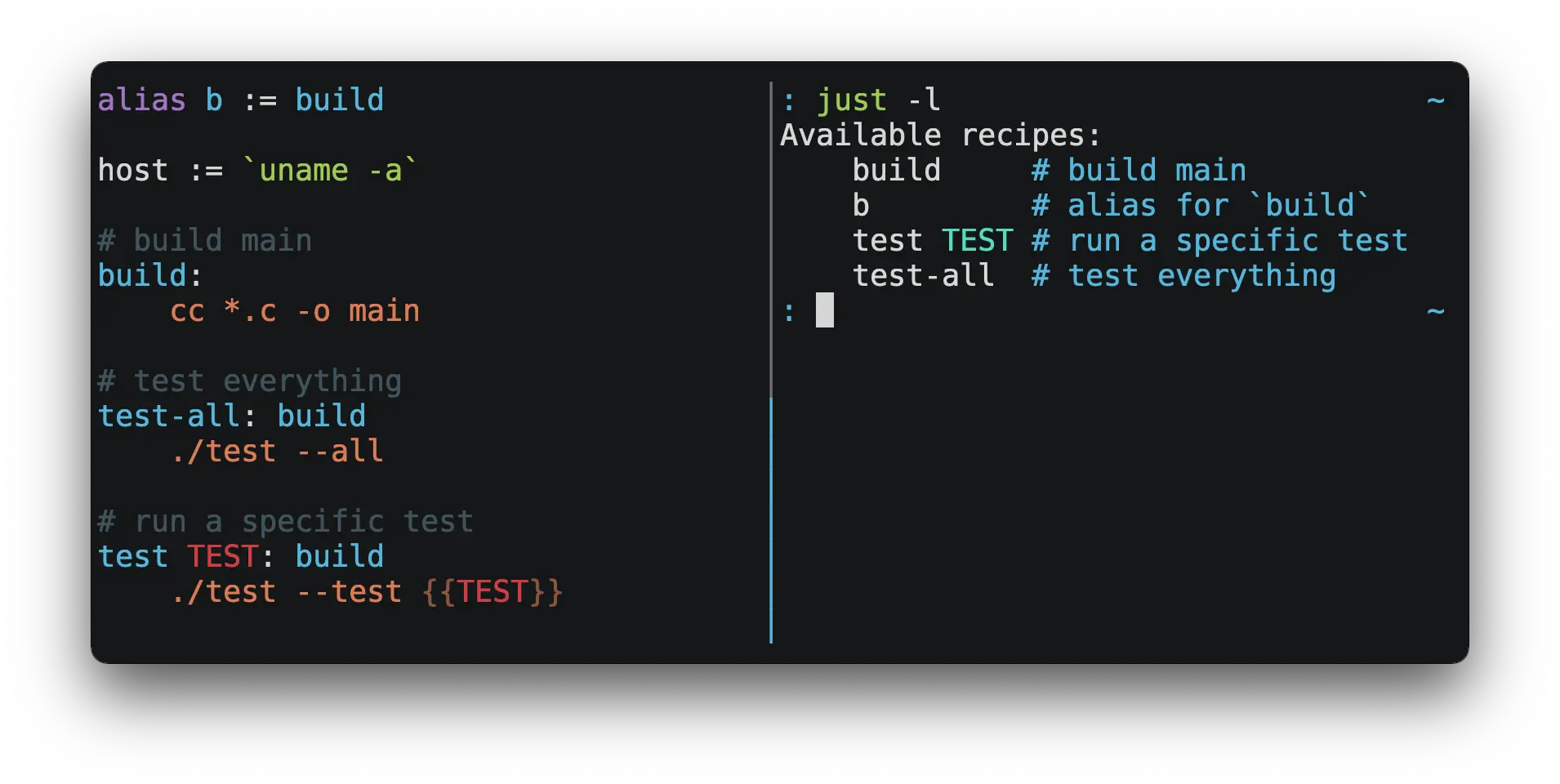
You can then run them with just RECIPE:
$ just test-all
cc *.c -o main
./test --all
Yay, all your tests passed!
Usage
Initialize new justfile:
just --initPrint what just would do without doing it:
just --dry-runList available recipes and their arguments:
just -l
just --list
List names of variables:
just --variablesOptions
| Option | Description |
|---|---|
--dotenv-filename <DOTENV-FILENAME> | Search for environment file named <DOTENV-FILENAME> instead of .env |
--dotenv-path <DOTENV-PATH> | Load environment file at <DOTENV-PATH> instead of searching for one |
-f, --justfile <JUSTFILE> | Use <JUSTFILE> as justfile |
--list-heading <TEXT> | Print <TEXT> before list |
--set <VARIABLE> <VALUE> | Override <VARIABLE> with <VALUE> |
-d, --working-directory <WORKING-DIRECTORY> | Use <WORKING-DIRECTORY> as working directory. --justfile must also be set |
Quick Start
Create a file named justfile in the root of your project with the following contents:
recipe-name:
	echo 'This is a recipe!'

# this is a comment
another-recipe:
	@echo 'This is another recipe.'
When you invoke just it looks for file justfile in the current directory and upwards, so you can invoke it from any subdirectory of your project.
The search for a justfile is case insensitive, so any case, like Justfile, JUSTFILE, or JuStFiLe, will work. just will also look for files with the name .justfile, in case you’d like to hide a justfile.
Running just with no arguments runs the first recipe in the justfile:
$ just
echo 'This is a recipe!'
This is a recipe!
One or more arguments specify the recipe(s) to run:
$ just another-recipe
This is another recipe.
just prints each command to standard error before running it, which is why echo 'This is a recipe!' was printed. This is suppressed for lines starting with @, which is why echo 'This is another recipe.' was not printed.
Recipes stop running if a command fails. Here cargo publish will only run if cargo test succeeds:
publish:
	cargo test   # tests passed, time to publish!
	cargo publish
Recipes can depend on other recipes. Here the test recipe depends on the build recipe, so build will run before test:
build:
	cc main.c foo.c bar.c -o main

test: build
	./test

sloc:
	@echo "`wc -l *.c` lines of code"
$ just test
cc main.c foo.c bar.c -o main
./test
testing… all tests passed!`
Recipes without dependencies will run in the order they’re given on the command line:
$ just build sloc
cc main.c foo.c bar.c -o main
1337 lines of code
Features
Default Recipe
When just is invoked without a recipe, it runs the first recipe in the justfile. This recipe might be the most frequently run command in the project, like running the tests:
test:
	cargo test
You can also use dependencies to run multiple recipes by default:
default: lint build test

build:
	echo Building

test:
	echo Testing

lint:
	echo Linting
If no recipe makes sense as the default recipe, you can add a recipe to the beginning of your justfile that lists the available recipes:
default:
	@just --list
Listing Available Recipes
Recipes can be listed in alphabetical order with just --list:
$ just --list
Available recipes:
    build
    test
    deploy
    lint
just --summary is more concise:
$ just --summary
build test deploy lint
If you’d like just to default to listing the recipes in the justfile, you can use this as your default recipe:
default:
  @just --list
Note that you may need to add
--justfile {{justfile()}}to the line above above. Without it, if you executedjust -f /some/distant/justfile -d .orjust -f ./non-standard-justfile, the plainjust --listinside the recipe would not necessarily use the file you provided. It would try to find a justfile in your current path, maybe even resulting in aNo justfile founderror.
The heading text can be customized with --list-heading:
$ just --list --list-heading $'Cool stuff…\n'
Cool stuff…
    test
    build
Aliases
Aliases allow recipes to be invoked with alternative names:
alias b := build

build:
  echo 'Building!'
$ just b
build
echo 'Building!'
Building!Settings
Settings control interpretation and execution. Each setting may be specified at most once, anywhere in the justfile.
For example:
set shell := ["zsh", "-cu"]

foo:
  # this line will be run as `zsh -cu 'ls **/*.txt'`
  ls **/*.txt
Table of Settings
| Name | Value | Default | Description |
|---|---|---|---|
allow-duplicate-recipes | boolean | false | Allow recipes appearing later in a justfile to override earlier recipes with the same name. |
dotenv-filename | string | - | Load a .env file with a custom name, if present. |
dotenv-load | boolean | false | Load a .env file, if present. |
dotenv-path | string | - | Load a .env file from a custom path, if present. Overrides dotenv-filename. |
export | boolean | false | Export all variables as environment variables. |
fallback | boolean | false | Search justfile in parent directory if the first recipe on the command line is not found. |
ignore-comments | boolean | false | Ignore recipe lines beginning with #. |
positional-arguments | boolean | false | Pass positional arguments. |
shell | [COMMAND, ARGS…] | - | Set the command used to invoke recipes and evaluate backticks. |
tempdir | string | - | Create temporary directories in tempdir instead of the system default temporary directory. |
windows-powershell | boolean | false | Use PowerShell on Windows as default shell. (Deprecated. Use windows-shell instead. |
windows-shell | [COMMAND, ARGS…] | - | Set the command used to invoke recipes and evaluate backticks. |
Dotenv Settings
If dotenv-load, dotenv-filename or dotenv-path is set, just will load environment variables from a file.
If dotenv-path is set, just will look for a file at the given path.
Otherwise, just looks for a file named .env by default, unless dotenv-filename set, in which case the value of dotenv-filename is used. This file can be located in the same directory as your justfile or in a parent directory.
The loaded variables are environment variables, not just variables, and so must be accessed using $VARIABLE_NAME in recipes and backticks.
For example, if your .env file contains:
# a comment, will be ignored
DATABASE_ADDRESS=localhost:6379
SERVER_PORT=1337
And your justfile contains:
set dotenv-load

serve:
  @echo "Starting server with database $DATABASE_ADDRESS on port $SERVER_PORT…"
  ./server --database $DATABASE_ADDRESS --port $SERVER_PORT
just serve will output:
$ just serve
Starting server with database localhost:6379 on port 1337…
./server --database $DATABASE_ADDRESS --port $SERVER_PORT
Positional Arguments
If positional-arguments is true, recipe arguments will be passed as positional arguments to commands. For linewise recipes, argument $0 will be the name of the recipe.
For example, running this recipe:
set positional-arguments

@foo bar:
  echo $0
  echo $1
Will produce the following output:
$ just foo hello
foo
hello
When using an sh-compatible shell, such as bash or zsh, $@ expands to the positional arguments given to the recipe, starting from one. When used within double quotes as "$@", arguments including whitespace will be passed on as if they were double-quoted. That is, "$@" is equivalent to "$1" "$2"… When there are no positional parameters, "$@" and $@ expand to nothing (i.e., they are removed).
This example recipe will print arguments one by one on separate lines:
set positional-arguments

@test *args='':
  bash -c 'while (( "$#" )); do echo - $1; shift; done' -- "$@"
Running it with two arguments:
$ just test foo "bar baz"
- foo
- bar baz
Shell
The shell setting controls the command used to invoke recipe lines and backticks. Shebang recipes are unaffected.
# use python3 to execute recipe lines and backticks
set shell := ["python3", "-c"]

# use print to capture result of evaluation
foos := `print("foo" * 4)`

foo:
  print("Snake snake snake snake.")
  print("{{foos}}")
just passes the command to be executed as an argument. Many shells will need an additional flag, often -c, to make them evaluate the first argument.
Documentation Comments
Comments immediately preceding a recipe will appear in just --list:
# build stuff
build:
  ./bin/build

# test stuff
test:
  ./bin/test
$ just --list
Available recipes:
build # build stuff
test # test stuffVariables and Substitution
Variables, strings, concatenation, path joining, and substitution using {{…}} are supported:
tmpdir  := `mktemp -d`
version := "0.2.7"
tardir  := tmpdir / "awesomesauce-" + version
tarball := tardir + ".tar.gz"

publish:
  rm -f {{tarball}}
  mkdir {{tardir}}
  cp README.md *.c {{tardir}}
  tar zcvf {{tarball}} {{tardir}}
  scp {{tarball}} me@server.com:release/
  rm -rf {{tarball}} {{tardir}}
Joining Paths
The / operator can be used to join two strings with a slash:
foo := "a" / "b"$ just --evaluate foo
a/b
Note that a / is added even if one is already present:
foo := "a/"
bar := foo / "b"
$ just --evaluate bar
a//b
Absolute paths can also be constructed:
foo := / "b"$ just --evaluate foo
/b
Escaping {{
To write a recipe containing {{, use {{{{:
braces:
  echo 'I {{{{LOVE}} curly braces!'
(An unmatched }} is ignored, so it doesn’t need to be escaped.)
Another option is to put all the text you’d like to escape inside of an interpolation:
braces:
  echo '{{'I {{LOVE}} curly braces!'}}'
Yet another option is to use {{ "{{" }}:
braces:
  echo 'I {{ "{{" }}LOVE}} curly braces!'
Ignoring Errors
Normally, if a command returns a non-zero exit status, execution will stop. To continue execution after a command, even if it fails, prefix the command with -:
foo:
  -cat foo
  echo 'Done!'
$ just foo
cat foo
cat: foo: No such file or directory
echo 'Done!'
Done!Functions
just provides a few built-in functions that might be useful when writing recipes.
System Information
arch()— Instruction set architecture. Possible values are:"aarch64","arm","asmjs","hexagon","mips","msp430","powerpc","powerpc64","s390x","sparc","wasm32","x86","x86_64", and"xcore".num_cpus()- Number of logical CPUs.os()— Operating system. Possible values are:"android","bitrig","dragonfly","emscripten","freebsd","haiku","ios","linux","macos","netbsd","openbsd","solaris", and"windows".os_family()— Operating system family; possible values are:"unix"and"windows".
For example:
system-info:
  @echo "This is an {{arch()}} machine".
$ just system-info
This is an x86_64 machineEnvironment Variables
env_var(key)— Retrieves the environment variable with namekey, aborting if it is not present.
home_dir := env_var('HOME')

test:
  echo "{{home_dir}}"
$ just
/home/user1env_var_or_default(key, default)— Retrieves the environment variable with namekey, returningdefaultif it is not present.env(key)— Alias forenv_var(key).env(key, default)— Alias forenv_var_or_default(key, default).
Invocation Directory
invocation_directory()- Retrieves the absolute path to the current directory whenjustwas invoked.
For example, to call rustfmt on files just under the “current directory” (from the user/invoker’s perspective), use the following rule:
rustfmt:
  find {{invocation_directory()}} -name \*.rs -exec rustfmt {} \;
Alternatively, if your command needs to be run from the current directory, you could use (e.g.):
build:
  cd {{invocation_directory()}}; ./some_script_that_needs_to_be_run_from_here
Justfile and Justfile Directory
justfile()- Retrieves the path of the currentjustfile.justfile_directory()- Retrieves the path of the parent directory of the currentjustfile.
For example, to run a command relative to the location of the current justfile:
script:
  ./{{justfile_directory()}}/scripts/some_script
Just Executable
just_executable()- Absolute path to thejustexecutable.
For example:
executable:
  @echo The executable is at: {{just_executable()}}
$ just
The executable is at: /bin/justString Manipulation
quote(s)- Replace all single quotes with'\''and prepend and append single quotes tos. This is sufficient to escape special characters for many shells, including most Bourne shell descendants.replace(s, from, to)- Replace all occurrences offrominstoto.replace_regex(s, regex, replacement)- Replace all occurrences ofregexinstoreplacement. Regular expressions are provided by the Rustregexcrate. See the syntax documentation for usage examples. Capture groups are supported. Thereplacementstring uses Replacement string syntax.trim(s)- Remove leading and trailing whitespace froms.trim_end(s)- Remove trailing whitespace froms.trim_end_match(s, pat)- Remove suffix ofsmatchingpat.trim_end_matches(s, pat)- Repeatedly remove suffixes ofsmatchingpat.trim_start(s)- Remove leading whitespace froms.trim_start_match(s, pat)- Remove prefix ofsmatchingpat.trim_start_matches(s, pat)- Repeatedly remove prefixes ofsmatchingpat.
Case Conversion
capitalize(s)- Convert first character ofsto uppercase and the rest to lowercase.kebabcase(s)- Convertstokebab-case.lowercamelcase(s)- ConvertstolowerCamelCase.lowercase(s)- Convertsto lowercase.shoutykebabcase(s)- ConvertstoSHOUTY-KEBAB-CASE.shoutysnakecase(s)- ConvertstoSHOUTY_SNAKE_CASE.snakecase(s)- Convertstosnake_case.titlecase(s)- ConvertstoTitle Case.uppercamelcase(s)- ConvertstoUpperCamelCase.uppercase(s)- Convertsto uppercase.
Path Manipulation
Fallible
absolute_path(path)- Absolute path to relativepathin the working directory.absolute_path("./bar.txt")in directory/foois/foo/bar.txt.extension(path)- Extension ofpath.extension("/foo/bar.txt")istxt.file_name(path)- File name ofpathwith any leading directory components removed.file_name("/foo/bar.txt")isbar.txt.file_stem(path)- File name ofpathwithout extension.file_stem("/foo/bar.txt")isbar.parent_directory(path)- Parent directory ofpath.parent_directory("/foo/bar.txt")is/foo.without_extension(path)-pathwithout extension.without_extension("/foo/bar.txt")is/foo/bar.
These functions can fail, for example if a path does not have an extension, which will halt execution.
Infallible
clean(path)- Simplifypathby removing extra path separators, intermediate.components, and..where possible.clean("foo//bar")isfoo/bar,clean("foo/..")is.,clean("foo/./bar")isfoo/bar.join(a, b…)- This function uses/on Unix and\on Windows, which can be lead to unwanted behavior. The/operator, e.g.,a / b, which always uses/, should be considered as a replacement unless\s are specifically desired on Windows. Join pathawith pathb.join("foo/bar", "baz")isfoo/bar/baz. Accepts two or more arguments.
Filesystem Access
path_exists(path)- Returnstrueif the path points at an existing entity andfalseotherwise. Traverses symbolic links, and returnsfalseif the path is inaccessible or points to a broken symlink.
Error Reporting
error(message)- Abort execution and report errormessageto user.
UUID and Hash Generation
sha256(string)- Return the SHA-256 hash ofstringas a hexadecimal string.sha256_file(path)- Return the SHA-256 hash of the file atpathas a hexadecimal string.uuid()- Return a randomly generated UUID.
Recipe Attributes
Recipes may be annotated with attributes that change their behavior.
| Name | Description |
|---|---|
[no-cd] | Don’t change directory before executing recipe. |
[no-exit-message] | Don’t print an error message if recipe fails. |
[linux] | Enable recipe on Linux. |
[macos] | Enable recipe on MacOS. |
[unix] | Enable recipe on Unixes. (Includes MacOS). |
[windows] | Enable recipe on Windows. |
[private]1 | See Private Recipes. |
A recipe can have multiple attributes, either on multiple lines:
[no-cd]
[private]
foo:
    echo "foo"
Or separated by commas on a single line:
[no-cd, private]
foo:
    echo "foo"
Enabling and Disabling Recipes
The [linux], [macos], [unix], and [windows] attributes are configuration attributes. By default, recipes are always enabled. A recipe with one or more configuration attributes will only be enabled when one or more of those configurations is active.
This can be used to write justfiles that behave differently depending on which operating system they run on. The run recipe in this justfile will compile and run main.c, using a different C compiler and using the correct output binary name for that compiler depending on the operating system:
[unix]
run:
  cc main.c
  ./a.out

[windows]
run:
  cl main.c
  main.exe
Disabling Changing Directory
just normally executes recipes with the current directory set to the directory that contains the justfile. This can be disabled using the [no-cd] attribute. This can be used to create recipes which use paths relative to the invocation directory, or which operate on the current directory.
For example, this commit recipe:
[no-cd]
commit file:
  git add {{file}}
  git commit
Can be used with paths that are relative to the current directory, because [no-cd] prevents just from changing the current directory when executing commit.
Command Evaluation Using Backticks
Backticks can be used to store the result of commands:
localhost := `dumpinterfaces | cut -d: -f2 | sed 's/\/.*//' | sed 's/ //g'`

serve:
  ./serve {{localhost}} 8080
Indented backticks, delimited by three backticks, are de-indented in the same manner as indented strings:
just
# This backtick evaluates the command `echo foo\necho bar\n`, which produces the value `foo\nbar\n`.
stuff := ```
    echo foo
    echo bar
  ```
Conditional Expressions
if/else expressions evaluate different branches depending on if two expressions evaluate to the same value:
foo := if "2" == "2" { "Good!" } else { "1984" }

bar:
  @echo "{{foo}}"
$ just bar
Good!It is also possible to test for inequality:
foo := if "hello" != "goodbye" { "xyz" } else { "abc" }

bar:
  @echo {{foo}}
$ just bar
xyzAnd match against regular expressions:
foo := if "hello" =~ 'hel+o' { "match" } else { "mismatch" }

bar:
  @echo {{foo}}
$ just bar
matchRegular expressions are provided by the regex crate, whose syntax is documented on docs.rs. Since regular expressions commonly use backslash escape sequences, consider using single-quoted string literals, which will pass slashes to the regex parser unmolested.
Conditional expressions short-circuit, which means they only evaluate one of their branches. This can be used to make sure that backtick expressions don’t run when they shouldn’t.
foo := if env_var("RELEASE") == "true" { `get-something-from-release-database` } else { "dummy-value" }Conditionals can be used inside of recipes:
bar foo:
  echo {{ if foo == "bar" { "hello" } else { "goodbye" } }}
Note the space after the final
}! Without the space, the interpolation will be prematurely closed.
Multiple conditionals can be chained:
foo := if "hello" == "goodbye" {
  "xyz"
} else if "a" == "a" {
  "abc"
} else {
  "123"
}

bar:
  @echo {{foo}}
$ just bar
abcStopping execution with error
Execution can be halted with the error function. For example:
foo := if "hello" == "goodbye" {
  "xyz"
} else if "a" == "b" {
  "abc"
} else {
  error("123")
}
Which produce the following error when run:
error: Call to function `error` failed: 123
   |
16 |   error("123")
Setting Variables from the Command Line
Variables can be overridden from the command line.
os := "linux"

test: build
  ./test --test {{os}}

build:
  ./build {{os}}
$ just
./build linux
./test --test linuxAny number of arguments of the form NAME=VALUE can be passed before recipes:
$ just os=plan9
./build plan9
./test --test plan9
Or you can use the --set flag:
$ just --set os bsd
./build bsd
./test --test bsd
Getting and Setting Environment Variables
Exporting just Variables
Assignments prefixed with the export keyword will be exported to recipes as environment variables:
export RUST_BACKTRACE := "1"

test:
  # will print a stack trace if it crashes
  cargo test
Parameters prefixed with a $ will be exported as environment variables:
test $RUST_BACKTRACE="1":
  # will print a stack trace if it crashes
  cargo test
Exported variables and parameters are not exported to backticks in the same scope.
export WORLD := "world"
# This backtick will fail with "WORLD: unbound variable"
BAR := `echo hello $WORLD`
# Running `just a foo` will fail with "A: unbound variable"
a $A $B=`echo $A`:
echo $A $BWhen export is set, all just variables are exported as environment variables.
Getting Environment Variables from the environment
Environment variables from the environment are passed automatically to the recipes.
print_home_folder:
  echo "HOME is: '${HOME}'"
$ just
HOME is '/home/myuser'Setting just Variables from Environment Variables
Environment variables can be propagated to just variables using the functions env_var() and env_var_or_default().
Recipe Parameters
Recipes may have parameters. Here recipe build has a parameter called target:
build target:
  @echo 'Building {{target}}…'
  cd {{target}} && make
To pass arguments on the command line, put them after the recipe name:
$ just build my-awesome-project
Building my-awesome-project…
cd my-awesome-project && make
To pass arguments to a dependency, put the dependency in parentheses along with the arguments:
default: (build "main")

build target:
  @echo 'Building {{target}}…'
  cd {{target}} && make
Variables can also be passed as arguments to dependencies:
target := "main"

_build version:
  @echo 'Building {{version}}…'
  cd {{version}} && make

build: (_build target)
A command’s arguments can be passed to dependency by putting the dependency in parentheses along with the arguments:
build target:
  @echo "Building {{target}}…"

push target: (build target)
  @echo 'Pushing {{target}}…'
Parameters may have default values:
default := 'all'

test target tests=default:
  @echo 'Testing {{target}}:{{tests}}…'
  ./test --tests {{tests}} {{target}}
Parameters with default values may be omitted:
$ just test server
Testing server:all…
./test --tests all server
Or supplied:
$ just test server unit
Testing server:unit…
./test --tests unit server
Default values may be arbitrary expressions, but concatenations or path joins must be parenthesized:
arch := "wasm"

test triple=(arch + "-unknown-unknown") input=(arch / "input.dat"):
  ./test {{triple}}
The last parameter of a recipe may be variadic, indicated with either a + or a * before the argument name:
backup +FILES:
  scp {{FILES}} me@server.com:
Variadic parameters prefixed with + accept one or more arguments and expand to a string containing those arguments separated by spaces:
$ just backup FAQ.md GRAMMAR.md
scp FAQ.md GRAMMAR.md me@server.com:
FAQ.md                  100% 1831     1.8KB/s   00:00
GRAMMAR.md              100% 1666     1.6KB/s   00:00
Variadic parameters prefixed with * accept zero or more arguments and expand to a string containing those arguments separated by spaces, or an empty string if no arguments are present:
commit MESSAGE *FLAGS:
  git commit {{FLAGS}} -m "{{MESSAGE}}"
Variadic parameters can be assigned default values. These are overridden by arguments passed on the command line:
test +FLAGS='-q':
  cargo test {{FLAGS}}
{{…}} substitutions may need to be quoted if they contain spaces. For example, if you have the following recipe:
search QUERY:
  lynx https://www.google.com/?q={{QUERY}}
And you type:
$ just search "cat toupee"just will run the command lynx https://www.google.com/?q=cat toupee, which will get parsed by sh as lynx, https://www.google.com/?q=cat, and toupee, and not the intended lynx and https://www.google.com/?q=cat toupee.
You can fix this by adding quotes:
search QUERY:
  lynx 'https://www.google.com/?q={{QUERY}}'
Parameters prefixed with a $ will be exported as environment variables:
foo $bar:
  echo $bar
Running Recipes at the End of a Recipe
Normal dependencies of a recipes always run before a recipe starts. That is to say, the dependee always runs before the depender. These dependencies are called “prior dependencies”.
A recipe can also have subsequent dependencies, which run after the recipe and are introduced with an &&:
a:
  echo 'A!'

b: a && c d
  echo 'B!'

c:
  echo 'C!'

d:
  echo 'D!'
…running b prints:
$ just b
echo 'A!'
A!
echo 'B!'
B!
echo 'C!'
C!
echo 'D!'
D!
Running Recipes in the Middle of a Recipe
just doesn’t support running recipes in the middle of another recipe, but you can call just recursively in the middle of a recipe. Given the following justfile:
a:
  echo 'A!'

b: a
  echo 'B start!'
  just c
  echo 'B end!'

c:
  echo 'C!'
…running b prints:
$ just b
echo 'A!'
A!
echo 'B start!'
B start!
echo 'C!'
C!
echo 'B end!'
B end!
This has limitations, since recipe c is run with an entirely new invocation of just: Assignments will be recalculated, dependencies might run twice, and command line arguments will not be propagated to the child just process.
Writing Recipes in Other Languages
Recipes that start with #! are called shebang recipes, and are executed by saving the recipe body to a file and running it. This lets you write recipes in different languages:
polyglot: python js perl sh ruby nu

python:
  #!/usr/bin/env python3
  print('Hello from python!')

js:
  #!/usr/bin/env node
  console.log('Greetings from JavaScript!')

perl:
  #!/usr/bin/env perl
  print "Larry Wall says Hi!\n";

sh:
  #!/usr/bin/env sh
  hello='Yo'
  echo "$hello from a shell script!"

nu:
  #!/usr/bin/env nu
  let hello = 'Hola'
  echo $"($hello) from a nushell script!"

ruby:
  #!/usr/bin/env ruby
  puts "Hello from ruby!"
$ just polyglot
Hello from python!
Greetings from JavaScript!
Larry Wall says Hi!
Yo from a shell script!
Hola from a nushell script!
Hello from ruby!On Unix-like operating systems, including Linux and MacOS, shebang recipes are executed by saving the recipe body to a file in a temporary directory, marking the file as executable, and executing it. The OS then parses the shebang line into a command line and invokes it, including the path to the file. For example, if a recipe starts with #!/usr/bin/env bash, the final command that the OS runs will be something like /usr/bin/env bash /tmp/PATH_TO_SAVED_RECIPE_BODY. Keep in mind that different operating systems split shebang lines differently.
Windows does not support shebang lines. On Windows, just splits the shebang line into a command and arguments, saves the recipe body to a file, and invokes the split command and arguments, adding the path to the saved recipe body as the final argument.
Multi-Line Constructs
Recipes without an initial shebang are evaluated and run line-by-line, which means that multi-line constructs probably won’t do what you want.
For example, with the following justfile:
conditional:
  if true; then
    echo 'True!'
  fi
The extra leading whitespace before the second line of the conditional recipe will produce a parse error:
$ just conditional
error: Recipe line has extra leading whitespace
  |
3 |         echo 'True!'
  |     ^^^^^^^^^^^^^^^^
To work around this, you can write conditionals on one line, escape newlines with slashes, or add a shebang to your recipe. Some examples of multi-line constructs are provided for reference.
if statements
conditional:
  if true; then echo 'True!'; fi
conditional:
if true; then \
echo 'True!'; \
ficonditional:
#!/usr/bin/env sh
if true; then
echo 'True!'
fifor loops
for:
  for file in `ls .`; do echo $file; done
for:
for file in `ls .`; do \
echo $file; \
donefor:
#!/usr/bin/env sh
for file in `ls .`; do
echo $file
donewhile loops
while:
  while `server-is-dead`; do ping -c 1 server; done
while:
while `server-is-dead`; do \
ping -c 1 server; \
donewhile:
#!/usr/bin/env sh
while `server-is-dead`; do
ping -c 1 server
donePrivate Recipes
Recipes and aliases whose name starts with a _ are omitted from just --list:
test: _test-helper
  ./bin/test

_test-helper:
  ./bin/super-secret-test-helper-stuff
$ just --list
Available recipes:
testThe [private] attribute may also be used to hide recipes or aliases without needing to change the name:
[private]
foo:

[private]
alias b := bar

bar:
$ just --list
Available recipes:
barThis is useful for helper recipes which are only meant to be used as dependencies of other recipes.